/// FIELD NOTES FROM A SELF-AWARE GAME SITE
PS Remote Play 2026: 1080p HQ in 12 Steps, 20 Min
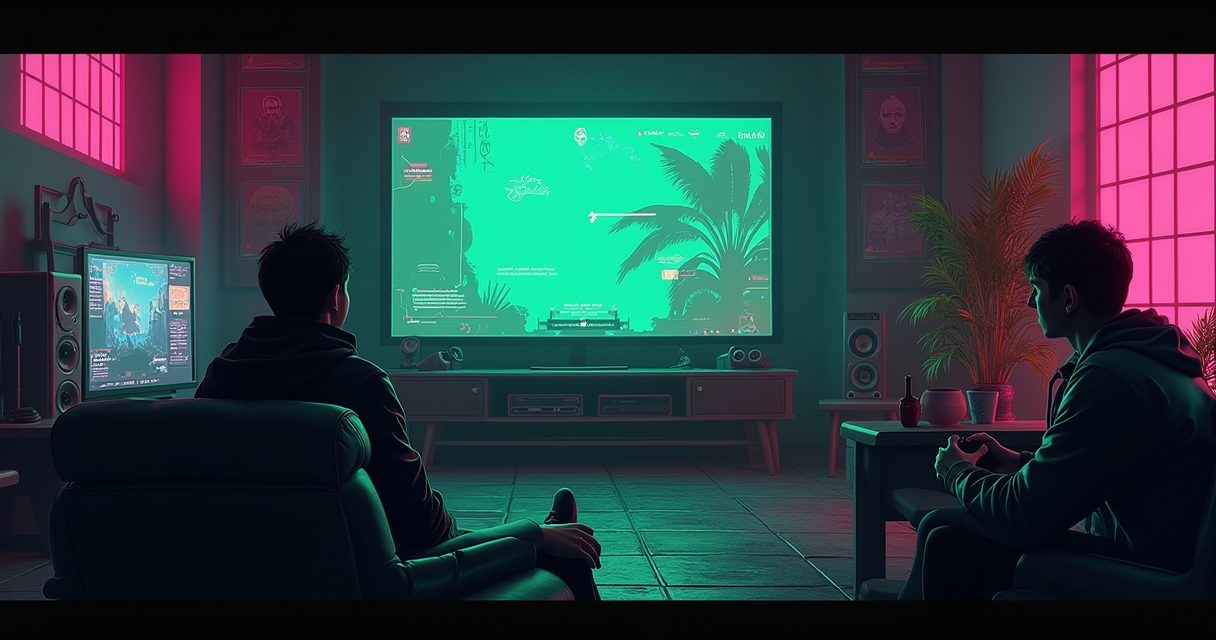
PlayStation Remote Play is the closest thing Sony sells to teleportation, and like most teleportation it works beautifully right up until it doesn't. The pitch is simple: your PS5 or PS4 sits somewhere doing the expensive silicon work, and a phone, laptop, tablet, or Sony's own PlayStation Portal becomes a thin window into it — video and audio out, controller input back, over your home network or across the open internet. Sony has shipped this feature in one form or another since 2006, when a PSP could peer at a PS3. In 2026 it is still officially supported, still free, and still capable of making you throw a controller over a single dropped packet.
This is a tutorial, not a brochure. We are going to set it up correctly the first time, explain why each setting matters instead of just telling you to flip it, and then push past the official app into port forwarding and the open-source Chiaki-ng client for the people who want a real bitrate. Sony's official minimum is 5 Mbps. That number is technically true and practically a cruel joke. By the end you will know what to actually aim for, which four ports to open, and how to read a connection log well enough to tell whether your problem is the console, the router, or the coffee-shop Wi-Fi you are pretending is broadband.
What Remote Play Actually Is
Before you touch a single setting, understand the shape of the thing. Half of all Remote Play misery comes from people expecting it to be something it structurally is not, then blaming Sony when physics wins.
The one-sentence version
Remote Play is native console functionality that wirelessly transmits a PlayStation's video and audio to a second device and pipes that device's controller input back — either over your local network or remotely across the internet through Sony's servers. That is Wikipedia's framing, and for once the encyclopedia is precise: the console does all the rendering, the client does the decoding and displaying, and Sony's servers exist mainly to introduce the two machines when they sit on different networks. The game never runs on your phone. Your phone is a very expensive remote control with a screen and a speaker. Every frame you see was rendered on the console, encoded to video, shipped as packets, and decoded again — which is exactly why a great connection still feels a hair softer than sitting in front of the TV.
PS5 versus PS4: 1080p60 against 720p30
The two supported consoles are not equal citizens. A PS5 targets up to 1080p at 60 fps over Remote Play. A PS4 is capped at 720p and 30 fps — the older encoder block simply cannot do more, and no amount of bandwidth changes that ceiling. If you are choosing which console to leave running for streaming, this is one more line in a ledger that already favors the newer machine; we went through the rest of that ledger in our breakdown of PS5 versus PS4 in 2026, where the GPU is 56 times faster and somehow still lost the sales race. For Remote Play, treat the PS4 ceiling as a hard fact and stop expecting a 2013 encoder to look like a 2020 one. Also note the asymmetry with hardware: the PlayStation Portal is PS5-only — it will not connect to a PS4 or PS3 — while the phone and desktop apps happily talk to a PS4.
What Remote Play is not
Remote Play is not cloud gaming. When you stream from your own console you are using hardware you paid for, sitting in your own house. That is a different service from PS Plus Premium cloud streaming, where the game runs in a Sony datacenter — and, critically, the two cannot run on the same session at the same time. Sony's own support pages spell out that Share Play, PS Plus Premium game streaming, gameplay broadcasting on PS4, Blu-ray and DVD playback, PS VR2 and PS VR, and music and video services are all mutually exclusive with an active Remote Play session. Start Remote Play and those doors close until you end it. This is not a bug; it is a single video encoder being asked to do one job at a time. If you have ever wondered why the console refuses to broadcast to Twitch and stream to your laptop simultaneously, that is your answer, and it is not going away.
Prerequisites: Hardware, Versions, Bandwidth
The setup itself takes about twenty minutes. Getting the prerequisites wrong turns that into a lost afternoon, so do this part honestly. There are three fronts — console, client, and network — and all three have to be right at once.
On the console side
You need a PS5 (any model, disc or digital) or a PS4 running current system software. Update it before anything else: encoder and network fixes ship inside system updates, and a console two firmwares behind will cheerfully fail to negotiate a session for reasons no error code will ever explain. The account you intend to stream with must be signed in on the console. Setting that console as your primary — on PS5 this lives under Settings > Users and Accounts > Other > Console Sharing and Offline Play — is not strictly mandatory for Remote Play, but it eliminates an entire genus of re-authentication failures, so do it. Finally, a console on wired Ethernet is worth more than any client-side tweak you will ever make; the console's uplink is the single biggest lever on stream stability, and Wi-Fi on the console end is where most "it stutters randomly" complaints are actually born.
On the client side
The official app runs on Windows, macOS, iPhone, iPad, Android, and the Portal. None of this is new — PC and Mac support has existed since the PS4 era, around 2016, whatever a breathless 2025 blog told you. The version floors that actually matter live on the mobile controllers and on the Portal firmware:
| Client platform | Minimum / notable version | Controller and input notes |
|---|---|---|
| Windows PC | Sony's PS Remote Play installer (current) | DualSense over USB or Bluetooth; keyboard/mouse for menus |
| macOS | Sony's PS Remote Play installer (current) | DualSense over USB or Bluetooth |
| iPhone / iPad | App Store build (current) | DualSense / DualShock 4 via Bluetooth; on-screen touch controls |
| Android | Android 10 or later | DualSense needs Android 12+; DualSense Edge needs Android 14+; Backbone One - PlayStation Edition on USB-C phones |
| PlayStation Portal | System software 7.0.x (7.0.2 latest) | 8-inch 1080p 60Hz LCD, built-in DualSense-style controls; PS5-only |
The Android listing is explicit about the controller floors above, and it also covers mic-based voice chat and on-screen-keyboard text entry — handy details if you plan to play anything that expects you to type. On iOS, the app remains on the App Store in 2026, so nothing has been quietly delisted.
The bandwidth reality
Here is where Sony's marketing and your experience diverge. The official minimum internet requirement on the PlayStation Remote Play page is 5 Mbps. The officially recommended figure is 15 Mbps. Treat 5 Mbps as the number below which the app refuses to feel bad about itself, not a target. The honest baseline for a clean 1080p60 stream is the 15 Mbps figure, and Sony's own 2026 "1080p High Quality" mode on the Portal was measured in hands-on testing sustaining roughly 14 to 18 Mbps. If you want the open-source client to stretch its legs, budget around 30 Mbps. Here is the ladder written out so you can stop guessing:
Target profile        Down/Up available      Resolution / FPS      Reality
--------------------  ---------------------  --------------------  ----------------------------
Sony minimum          ~5 Mbps                720p30 (PS4-ish)      "works," for a loose value
Sony recommended      ~15 Mbps               1080p60 Standard      the honest 1080p baseline
1080p High Quality    ~14-18 Mbps sustained  1080p60               Portal 7.0.0+, cleaner motion
Chiaki-ng headroom    ~30 Mbps (30000 Kbps)  1080p60               manual ceiling, LAN or strong WAN
Both ends count. A 500 Mbps home connection is useless if the console is on congested 2.4 GHz Wi-Fi, and a flawless console uplink cannot save a client on hotel Wi-Fi with 40 people torrenting. Measure the weakest link, not the biggest number on your bill.
How the Stream Actually Works
You do not strictly need this section to get a picture on screen. You absolutely need it to fix the stream when the picture is bad, because every troubleshooting decision downstream is really a question about one of the three stages below.
Local versus remote: two very different paths
On your home LAN, the client finds the console directly. It sends a UDP discovery broadcast, the console answers with its address, and the two open a control channel and a media channel between themselves — Sony's servers barely participate. This is the fast, reliable path, and it is why you should always do first-time pairing on the same network. Going remote is a different animal: your client is now on cellular or someone else's Wi-Fi, and the two devices are strangers separated by two routers doing Network Address Translation. Sony's servers step in as matchmakers to help the two sides find each other and punch a hole through the NAT. When that hole-punch fails — and it fails most often behind carrier-grade NAT — you get a connection error that looks like a console problem but is really a networking one. Hold that distinction; it is half of all troubleshooting.
Latency: why "2 milliseconds" is marketing fan-fiction
You will occasionally see someone claim Remote Play runs at 2 ms of latency. Ignore them. Two milliseconds is roughly the ICMP ping between two devices on the same switch — the time for a tiny packet to make a round trip. It is not the latency you feel. Felt, glass-to-glass latency is the full pipeline: the console renders a frame, encodes it to H.264 or H.265, packetizes it, sends it, the client receives and decodes it, and finally paints it to a panel that has its own refresh delay — and then your input has to make the return trip. On a good wired LAN that whole loop lands around 25 to 40 ms. That is genuinely good for a video stream and genuinely bad for frame-perfect fighting-game inputs. Calibrate your expectations to the physics: Remote Play is superb for RPGs, strategy, and most single-player action, and merely tolerable for anything demanding sub-frame timing.
The codec and the bitrate ladder
The console re-encodes its output on the fly. Everything you see over Remote Play is compressed video, which is why detail-dense scenes — smoke, foliage, fast pans — show more mush than a direct HDMI feed. Note that this is ordinary video encoding; it is not the PS5 Pro's PSSR upscaler doing anything clever, and anyone selling you "PSSR2 over Remote Play" is selling you a word that does not exist. The single most effective quality knob is bitrate, and bitrate is gated by your worst link. More bitrate means fewer compression artifacts at the same resolution, which is the entire pitch of the 2026 "1080p High Quality" mode we will configure shortly. When the picture looks like a watercolor, the fix is almost never a mysterious setting — it is bandwidth, or a link that cannot sustain it.
The 12-Step Walkthrough
Twelve steps, three phases: prepare the console, install and pair the client, then tune and go remote. Each step includes the reason it exists, because a step you understand is a step you can debug. Budget about twenty minutes for a first run; less once you have done it.
The phase map
Phase 1 (Steps 1-4) is entirely on the console and is where most silent failures are seeded — firmware, the Remote Play toggle, the account, and Rest Mode. Phase 2 (Steps 5-9) installs the client and performs the first pairing on your home LAN, which is the reliable path. Phase 3 (Steps 10-12) sets resolution and bitrate, unlocks 1080p High Quality on the Portal, and finally takes the session out onto the internet. Do them in order; skipping ahead to remote play before local play works is the most common self-inflicted wound.
The twelve steps
- Step 1 - Update the console system software. On the console, install any pending system update and reboot. Rationale: encoder, security, and NAT-traversal fixes ship inside firmware; a console behind on updates fails to negotiate sessions in ways no error message will explain.
- Step 2 - Enable Remote Play on the console. Go to Settings > System > Remote Play > Enable Remote Play and switch it on. Rationale: it is off by default. This single toggle is the number-one "why won't it connect" cause, because nothing else in the chain warns you it is disabled.
- Step 3 - Confirm the account and set the primary console. Make sure your PSN account is signed in, then set this console as primary via Settings > Users and Accounts > Other > Console Sharing and Offline Play. Rationale: pairing binds to the account, and primary status removes a whole class of re-authentication drops when you connect from outside.
- Step 4 - Configure Rest Mode networking. Under Settings > System > Power Saving > Features Available in Rest Mode, enable both Stay Connected to the Internet and Enable Turning On PS5 from Network. Rationale: without these, a console in Rest Mode drops off the network and you cannot wake it remotely — it is asleep in every sense that matters.
- Step 5 - Install the client app. Get the PS Remote Play app for your platform: the App Store for iPhone/iPad, Google Play for Android, or Sony's installer for Windows and macOS. Rationale: the client is platform-specific, and side-loaded or outdated builds are a common source of handshake failures.
- Step 6 - Sign in with the same PSN account. Launch the app and sign in with the exact account that is signed in on the console. Rationale: Remote Play authenticates against the account; a mismatch here fails instantly and looks like a network problem.
- Step 7 - Pair on the same LAN first. Put the client on the same Wi-Fi as the console and let the app auto-discover it (this is the UDP 9302 discovery broadcast doing its job). Rationale: local discovery is the reliable path; proving the pipeline works locally isolates every later problem to "the internet" rather than "everything."
- Step 8 - Register the device. Complete pairing — if prompted, register the client via Settings > System > Remote Play > Link Device on the console, which shows an 8-digit PIN. Rationale: registration exchanges keys so future connections skip re-approval; it is also the exact mechanism the open-source client will reuse later.
- Step 9 - Connect and test locally. Open the session, confirm you see the console home screen, and play something for two minutes over LAN. Rationale: this is your latency and stability baseline. If it is bad on a wired LAN, remote will be worse and the fault is local — fix it here.
- Step 10 - Set resolution and frame rate. In the app's settings, choose Resolution (720p or 1080p) and Frame Rate (Standard or High) to match your bandwidth from the ladder above. Rationale: over-asking a thin link produces the stutter-and-pixelate spiral; match the profile to the weakest connection, not the fastest.
- Step 11 - Unlock 1080p High Quality on Portal. On a Portal running firmware 7.0.0 or later, open the Quick Menu > Settings > Max Resolution > 1080p High Quality and restart the session. Rationale: this raises the bitrate ceiling (roughly 14-18 Mbps) for cleaner motion at the same 1080p60; it only takes effect after a session restart.
- Step 12 - Go remote. Leave the console in Rest Mode, move the client to cellular or a different Wi-Fi, and connect. If it fails, that is your cue to forward the ports (covered below). Rationale: remote is where NAT and CGNAT bite; everything before this step existed to guarantee that a remote failure is a network failure and nothing else.
Expected output: a healthy handshake
You will not normally see a log in the official app — it hides the plumbing behind a spinner and a picture. But this is the sequence happening underneath, and it is exactly what the open-source client will print for you verbatim. A clean local connection looks like this:
[client] discovery: sending UDP broadcast on 9302 ...
[client] found console "PS5-LIVINGROOM" at 192.168.1.42 (registered)
[client] session: opening TCP 9295 control channel ... ok
[client] senkusha: probing UDP 9296 for mtu/bitrate ... 1080p60 negotiated
[client] stream: video H.265 ~15 Mbps, audio 2ch 48kHz ... playing
[client] rtt: 24 ms   jitter: 3 ms   dropped: 0.0%
The two numbers that matter are the last line. An RTT in the 20-40 ms band with jitter in the low single digits and near-zero drops is a healthy session. If RTT climbs past 80-100 ms or drops creep above one or two percent, the stream will feel spongy and start to pixelate — and now you know to look at the network, not the console.
1080p Standard vs 1080p High Quality
The headline change of 2026 was not a new console or a new app — it was a bitrate mode. On March 17 (PDT) / March 18 (CET and JST) 2026, Sony pushed PlayStation Portal system software 7.0.0, and the marquee feature was a new 1080p High Quality option. This is worth getting right because the brief that circulated at launch mislabeled the version, and version numbers are the one thing you cannot fudge.
The 7.0.0 update and the Quick Menu path
The 1080p High Quality mode arrived in Portal firmware 7.0.0, not 6.0.0. Firmware 6.0.0 was the earlier "full launch" update that brought PS Plus Premium cloud streaming to the Portal — over 2,800 streamable PS5 titles, a redesigned home screen, 3D audio over headphones, and the PS button reassigned to open the quick menu. The March 2026 7.0.0 update is the one that added the higher-bitrate video option, and it applied to both Remote Play and cloud streaming, which is Sony finally treating the Portal as the dual-purpose streaming box it always was. The mode is selected exactly where the official PlayStation Blog says it is:
Quick Menu  (press the PS button)
  > Settings
    > Max Resolution
        1080p Standard
        1080p High Quality   [select this, then restart the session]
It takes effect only after you restart the Remote Play or cloud-streaming session — pick it, back out, reconnect. The same 7.0.0 update also folded in game invite notifications, enhanced trophy notifications, and search-screen refinements, with 7.0.2 shipping later as the current maintenance release. Engadget's coverage is the cleanest third-party write-up of the change if you want a second source.
Standard versus High Quality: 14-18 Mbps of difference
Both modes output the same 1080p at 60 fps. The difference is bitrate. Standard mode runs leaner and holds up fine on a modest connection; High Quality mode was observed in 2026 hands-on testing sustaining roughly 14 to 18 Mbps, and the payoff is exactly what more bits buys you — cleaner motion and noticeably fewer compression artifacts in the busy, high-detail scenes where Standard mode smears. It does not add resolution, sharpness settings, or HDR that were not already there. If your connection cannot hold that sustained rate, High Quality will actually look worse than Standard, because a starved high-bitrate stream drops frames rather than gracefully softening. Use the ladder: if you cannot comfortably clear the high teens of megabits on both ends, stay on Standard.
Matching resolution to what you actually have
On the phone and desktop apps the vocabulary is slightly different — you pick Resolution (up to 1080p on PS5, capped at 720p on PS4) and Frame Rate (Standard or High) — but the logic is identical. Start conservative, confirm a stable session, then climb one rung at a time. If you jump straight to the top profile on a marginal link, you will spend twenty minutes convinced the console is broken when the honest answer is that your upload cannot sustain the bitrate. And remember the PS4 hard cap from earlier: no menu, no mode, and no firmware will push a PS4 past 720p30. If 1080p matters to you, the console generation is the prerequisite, not the setting.
Five Pitfalls That Kill the Stream
These are the failure modes that account for the overwhelming majority of "Remote Play doesn't work" threads. Each one has a specific fix; none of them is "buy faster internet," though that never hurts.
Network pitfalls
Pitfall 1 - Double NAT and CGNAT. If your ISP puts you behind carrier-grade NAT, or you are running a router behind another router, the remote hole-punch that Remote Play depends on will fail and you will get a generic connection error from outside the house even though everything works on your LAN. Fix: put your own router in bridge mode to eliminate the double NAT, and if the ISP is the culprit, ask them for a routable address or bridge the ISP gateway. Where CGNAT cannot be removed, fall back to PS Plus cloud streaming or route the client through a VPN back to your home network. This is the single most common remote-only failure.
Pitfall 2 - 2.4 GHz Wi-Fi congestion. A stream that is perfect for ten minutes and then periodically stutters is almost always a client (or console) sitting on a crowded 2.4 GHz band, sharing air with microwaves, neighbors, and every smart bulb in the building. Fix: move the client to 5 GHz, and get the console onto wired Ethernet. The console's connection is the one that carries all the video; wiring it is the highest-leverage fix in this entire article.
Console pitfalls
Pitfall 3 - Rest Mode with networking disabled. You leave the house, the console goes to sleep, and now the app cannot find it. This is Step 4 coming back to bite you. Fix: re-enable Stay Connected to the Internet and Enable Turning On PS5 from Network under Rest Mode features. A console that cannot stay on the network in Rest Mode is, for remote purposes, powered off.
Pitfall 4 - Fighting the encoder over exclusive features. You try to start Remote Play while Share Play is active, or while a Blu-ray is playing, or while a PS Plus Premium cloud title is running, and it refuses or one side dies. Fix: stop the conflicting activity first. Remember the exclusivity list — Share Play, PS Plus Premium streaming, PS4 broadcasting, Blu-ray/DVD, PS VR2/PS VR, and music and video services all block Remote Play by design, because the encoder does one job at a time.
Client pitfalls
Pitfall 5 - Wrong account or non-primary console. Two accounts, two subtly different sign-ins, and the app authenticates against the wrong one — instant failure that reads like a network error. Fix: confirm the client is signed into the exact PSN account that is signed in on the console, and set that console as primary (Step 3). Pitfall 6 - DualSense on too-old Android. Your controller pairs to the phone but the game ignores it. Fix: check the OS floor — DualSense requires Android 12 or later, and DualSense Edge requires Android 14 or later. Below those, the app falls back to on-screen touch controls whether you want it to or not.
The Troubleshooting Table
When a specific thing breaks, start here. The table maps symptom to the most probable cause and the fix that resolves it most often. Work top to bottom; the earlier rows are the more common failures.
Network and pairing failures
Most "can't connect" problems live in this half of the table. If the console works over LAN but not remotely, jump straight to the NAT and Rest Mode rows — those two account for the bulk of remote-only failures, and neither is a console defect.
Video and input problems
If you are connected but the experience is bad — pixelation, lag, black screen, dead controller — the lower rows apply. These are almost always bandwidth, band choice, or a decoder mismatch rather than anything wrong with the console itself.
| Symptom | Likely cause | Fix |
|---|---|---|
| App can't find console on the same Wi-Fi | UDP 9302 discovery blocked, or AP/client isolation on the router | Disable AP isolation/guest mode; keep both devices on the same subnet; re-run discovery |
| Connects, then drops after a few seconds remotely | Rest Mode networking disabled on the console | Enable Stay Connected to the Internet and Enable Turning On PS5 from Network |
| Generic "can't connect" only from outside the house | Double NAT or carrier-grade NAT defeating hole-punch | Bridge your router; request a routable IP; else forward ports or use a VPN home |
| Constant pixelation and stutter | Insufficient sustained bandwidth or 2.4 GHz congestion | Drop to 720p/Standard; move client to 5 GHz; wire the console |
| Input lag feels like 150-200 ms or worse | Congested remote path or Wi-Fi on the console | Lower the bitrate/frame-rate profile; put the console on Ethernet |
| Audio plays but the screen stays black | Client hardware decoder or GPU driver issue | Toggle hardware decoding off/on; update the GPU driver (PC/Mac) |
| Controller pairs but game ignores it (Android) | OS below the controller version floor | Update to Android 12+ for DualSense, Android 14+ for DualSense Edge |
| Console won't wake from Rest Mode remotely | Power-saving drops the LAN link in Rest Mode | Enable both Rest Mode network options; verify with a LAN wake first |
| "1080p High Quality" option is missing on Portal | Portal firmware below 7.0.0 | Update Portal system software to 7.0.x (7.0.2 latest) |
| Session keeps signing out / loses pairing | Non-primary console or account mismatch | Set console as primary; sign the client into the same PSN account; re-register |
| Intermittent, worsening glitches after months | Corrupt console cache/database | Clear cache / rebuild database in Safe Mode, then reconnect |
That last row is worth a note: when a previously perfect setup slowly degrades for no visible reason, a corrupted system cache is a genuine suspect, and clearing it is low-risk. We walk the exact Safe Mode sequence in our guide to the PS5 cache clear in 2026 — it is Option 6 in Safe Mode, about ten minutes, and it fixes a surprising range of "it just got weird" problems including flaky Remote Play handshakes.
Advanced: Chiaki-ng, the Open-Source Client
The official app is fine. It is also a black box that decides your bitrate for you and runs on the platforms Sony blesses. If you want a real bitrate ceiling, a proper connection log, and clients on Linux, a Steam Deck, or a Nintendo Switch, you want Chiaki-ng — and yes, the irony of streaming a PlayStation to a Switch is not lost on anyone.
Why Chiaki-ng exists
Chiaki began as a clean-room open-source Remote Play client by the developer known as thestr4ng3r. Chiaki-ng (formerly chiaki4deck) is the actively maintained fork by streetpea, with the current release being v1.10.0, dated April 3, 2026. It runs on Linux, FreeBSD, OpenBSD, Android, macOS, Windows, and the Switch, and its documentation is thorough. It is also, in its own words, not endorsed or certified by Sony — this is reverse-engineered software talking to Sony's protocol, so treat it as the enthusiast tool it is, keep it updated, and do not expect Sony support to help you with it. The upside is control: you set the resolution, the frame rate, and the exact bitrate, and it will happily push a stream harder than the official app ever will. The GitHub repository and the project documentation are the authoritative sources for builds and platform-specific decoder flags.
Getting your Account-ID and the 8-digit PIN
This is the one genuinely fiddly part, and it trips up everyone once. Chiaki-ng registers against your PSN Account-ID — a Base64 string — and this is not your Online-ID (the username your friends see). You obtain the Base64 Account-ID through the tooling the docs point to, then you pair using an 8-digit PIN generated on the console at Settings > System > Remote Play > Link Device. Enter the Account-ID and that one-time PIN into Chiaki-ng's registration dialog, and the client stores the keys for future sessions exactly as the official app does. Get the wrong ID and registration silently fails; this is the single most common Chiaki-ng setup error, so double-check that you used the Base64 Account-ID and not your username.
Config: 1080p60 at 30 Mbps
Once registered, the recommended profile for a PS5 is 1080p at 60 fps with the bitrate pushed to 30000 Kbps, hardware decoding on, the console on Ethernet, and the client on 5 GHz. Here is a representative configuration — field names vary slightly by platform, but the intent maps directly onto the GUI:
# chiaki-ng - console registration + stream profile
# Register via: Settings > System > Remote Play > Link Device  (8-digit PIN)
[console]
nickname         = PS5-LIVINGROOM
host             = 192.168.1.42        # LAN IP, or a DDNS hostname for WAN
account_id       = xxxxxxxxxxxxxxxx==  # PSN Account-ID, Base64 (NOT your Online-ID)
registration_pin = 12345678            # one-time, from Link Device

[stream]
resolution   = 1080p
fps          = 60
bitrate      = 30000        # Kbps; 0 = auto, 30000 is a sane manual ceiling
codec        = h265         # h264 fallback for older client GPUs
hw_decoder   = on           # vaapi / vulkan / d3d11 / videotoolbox per platform
audio_buffer = 9600         # raise if audio crackles, lower for less delay
Chiaki-ng is also the reason Remote Play is genuinely good on PC handhelds. Loaded onto a Steam Deck or an Asus device, it turns any of them into a portable PS5 screen — and if you are weighing which handheld to buy for exactly this kind of duty, our ROG Ally versus Steam Deck comparison lays out where the price war landed in 2026. The same client runs on non-PlayStation handhelds across the board, so even if your other machine is an Xbox handheld, the open-source path still gets you a PS5 stream it was never meant to have.
Advanced: Ports, NAT, and Router Rules
If remote connections fail while local ones succeed, this section is your fix. Remote Play uses a small, specific set of ports, and forwarding them to the console removes the guesswork from NAT traversal. This is optional on a friendly network and mandatory on a hostile one.
The four ports that matter
Remote Play's transport is compact. Four ports carry the whole session, plus a separate set for PSN sign-in that is usually already open:
| Port | Protocol | Purpose |
|---|---|---|
| 9295 | TCP | Registration and the control channel |
| 9296 | UDP | Audio/video stream and the Senkusha bandwidth probe |
| 9297 | UDP | Controller feedback / input channel |
| 9302 | UDP | PS5 discovery (use UDP 987 for a PS4) |
Some setups negotiate into a small fallback range, 9295-9304, so forwarding the range rather than the four exact ports is a reasonable belt-and-braces move. Sign-in additionally uses TCP 80, 443, 3478, 3479, and 3480, plus UDP 3478 and 3479 — you rarely need to touch those, but list them if you run an unusually strict firewall that blocks by default.
NAT type, double NAT, and the CGNAT wall
Your router's NAT type governs how easily two devices on different networks can meet. Forwarding the ports above to the console's static LAN address opens the path deliberately instead of hoping the automatic hole-punch works. The wall you cannot climb with port forwarding is carrier-grade NAT: if your ISP shares one public address across many customers, forwarded ports on your router lead nowhere, because the address the internet sees is not yours to configure. When you hit CGNAT, your realistic options are to ask the ISP for a routable/public IP, tunnel back home over a VPN so the client appears to be on your LAN, or sidestep Remote Play entirely with PS Plus cloud streaming. No amount of router fiddling defeats CGNAT from your side alone.
A port-forward rule set
Give the console a static DHCP reservation first so its LAN address never changes, then forward to it. In router-agnostic terms, the rules look like this:
# Forward to the CONSOLE's reserved LAN IP (example: 192.168.1.42)
# --- Remote Play transport ---
TCP  9295            # registration + control
UDP  9296            # A/V stream + Senkusha probe
UDP  9297            # controller feedback / input
UDP  9302            # PS5 discovery   (UDP 987 for a PS4)

# --- Fallback range some sessions negotiate into ---
TCP/UDP  9295-9304

# --- PSN sign-in (usually already open; list for strict firewalls) ---
TCP  80, 443, 3478, 3479, 3480
UDP  3478, 3479
After applying the rules, reboot the router, wake the console, and reconnect from outside the LAN. A remote session that previously failed instantly and now completes the handshake is the sign the NAT path was your problem all along. If it still fails after correct forwarding, you are almost certainly behind CGNAT — verify by comparing the WAN IP your router reports against the public IP a "what is my IP" lookup shows; if they differ, the ISP is doing the NAT, and the VPN-home route is your cleanest fix.
The Complete Working Configuration
Here is everything consolidated into one reference you can check against when something drifts. If a session degrades weeks from now, walk this list top to bottom before you start changing things at random — the fault is nearly always a setting that quietly reverted or a link that got congested.
Console settings recap
The console is the foundation, and four of its settings are load-bearing. Keep the system software current. Keep Enable Remote Play on. Keep the console set as primary and signed into the correct account. Keep both Rest Mode network options enabled so the machine is reachable when it sleeps. And, above all, keep it on wired Ethernet — that one physical choice outperforms every software tweak in this article combined, because the console's uplink carries all the video.
Client settings recap
On the client, sign into the matching PSN account, start conservative on resolution and frame rate, and climb only after a stable local session. On a Portal, unlock 1080p High Quality through Quick Menu > Settings > Max Resolution and restart the session — but only if your bandwidth genuinely sustains the high teens of megabits, or it will backfire. On Android, mind the controller floors (12 for DualSense, 14 for Edge). And if the official app's ceiling frustrates you, Chiaki-ng is the escape hatch, provided you register with the Base64 Account-ID and not your username.
The reference block
The whole working configuration in one place:
# ============================================================
# PS REMOTE PLAY - COMPLETE WORKING CONFIGURATION (2026)
# ============================================================

# --- CONSOLE (PS5) ---
System software .................. current (update first)
Settings > System > Remote Play ... Enable Remote Play = ON
Console Sharing and Offline Play .. this PS5 = Primary
Account .......................... signed in, matches client
Rest Mode > Stay Connected ........ ON
Rest Mode > Turn On from Network .. ON
Network .......................... WIRED Ethernet (do this)
Link Device (for pairing/Chiaki) .. Settings > System > Remote Play

# --- BANDWIDTH TARGETS ---
Sony minimum ..................... 5 Mbps       (avoid)
Sony recommended ................. 15 Mbps      (baseline)
1080p High Quality (Portal 7.0.0) . 14-18 Mbps   (sustained)
Chiaki-ng ceiling ................ 30000 Kbps   (~30 Mbps)

# --- OUTPUT CEILINGS ---
PS5 .............................. up to 1080p / 60 fps
PS4 .............................. up to 720p  / 30 fps
Portal ........................... PS5 only, 1080p 60Hz panel

# --- CLIENT (Portal, firmware 7.0.x) ---
Quick Menu > Settings > Max Resolution > 1080p High Quality
  (restart the session to apply)

# --- ANDROID CONTROLLER FLOORS ---
App .............................. Android 10+
DualSense ........................ Android 12+
DualSense Edge ................... Android 14+
Backbone One - PlayStation Ed. ... USB-C Android phones

# --- PORT FORWARDING (to console's reserved LAN IP) ---
TCP  9295            # control / registration
UDP  9296            # A/V + Senkusha probe
UDP  9297            # input feedback
UDP  9302            # PS5 discovery (UDP 987 = PS4)
TCP/UDP  9295-9304   # fallback range
TCP  80,443,3478,3479,3480 / UDP 3478,3479   # PSN sign-in

# --- EXCLUSIVE (cannot run WITH Remote Play) ---
Share Play, PS Plus Premium streaming, PS4 broadcasting,
Blu-ray/DVD, PS VR2/PS VR, music and video services

# --- OPEN-SOURCE PATH ---
Chiaki-ng v1.10.0 (Apr 3 2026), streetpea fork, NOT Sony-endorsed
Register with PSN Account-ID (Base64) + 8-digit PIN
# ============================================================
Set up this way, Remote Play in 2026 is a genuinely good piece of software wearing a bad marketing number. Ignore the 5 Mbps figure, wire the console, aim for 15 Mbps and up, and it will follow you onto a phone, a laptop, a Portal, or a handheld with 25-to-40 milliseconds of honest latency and a clean 1080p picture. It is not magic and it is not teleportation — it is a well-behaved video encoder and a UDP stream doing exactly what the physics allows. That will hold until the hardware underneath changes, and if you are wondering when that is, our read on the PlayStation 6 release date is that 2028 is the bet worth making. Whatever the next box renders, it will still be shipping frames down this same pipe.
Questions the search bar asks me
- What internet speed do I actually need for PS Remote Play?
- Sony's official minimum is 5 Mbps and its recommended figure is 15 Mbps, but treat 5 Mbps as a floor, not a target. A clean 1080p60 stream wants ~15 Mbps, the Portal's 1080p High Quality mode sustains roughly 14-18 Mbps, and the open-source Chiaki-ng client can push to 30000 Kbps (~30 Mbps). Both ends count — measure the weakest link.
- Does PS Remote Play still work on PS4 in 2026?
- Yes, through the phone and desktop apps, but a PS4 is hard-capped at 720p and 30 fps versus the PS5's 1080p60 ceiling — that limit is the PS4's older encoder, not a setting. Note the PlayStation Portal is PS5-only and will not connect to a PS4 or PS3.
- How do I turn on the 1080p High Quality mode?
- It shipped in PlayStation Portal system software 7.0.0 on March 17-18, 2026 (not 6.0.0, which was the earlier cloud-streaming launch). Go to Quick Menu > Settings > Max Resolution > 1080p High Quality and restart the session. It keeps the same 1080p60 output but raises the bitrate to roughly 14-18 Mbps for cleaner motion.
- Which ports do I forward for remote connections?
- Forward to the console's reserved LAN IP: TCP 9295 (control), UDP 9296 (A/V + Senkusha probe), UDP 9297 (input), and UDP 9302 for PS5 discovery (UDP 987 for a PS4), with 9295-9304 as a fallback range. Carrier-grade NAT defeats port forwarding entirely — behind CGNAT, use a VPN home or PS Plus cloud streaming instead.
- Is Chiaki-ng better than the official app, and is it safe?
- Chiaki-ng (streetpea's fork, v1.10.0 dated April 3, 2026) is open-source and gives you manual control over bitrate up to 30000 Kbps plus clients on Linux, Steam Deck, and Switch. It is explicitly not endorsed or certified by Sony, so keep it updated and don't expect Sony support. You register it with your Base64 PSN Account-ID and an 8-digit PIN from Settings > System > Remote Play > Link Device.

Jordan covers the modern industry where it touches the old one: Nintendo announcements, handheld hardware, and the long shadow the classics cast over new releases. Every post under this byline is reviewed pre-publish by Sam P., Editor & Operator — corrections to info@instalinkoteam.com. Published 2026-08-29 · Last updated 2026-08-29. Full bios on the author page.