/// FIELD NOTES FROM A SELF-AWARE GAME SITE
Twitch Studio Setup: 12 Steps, 30 Minutes (2026)
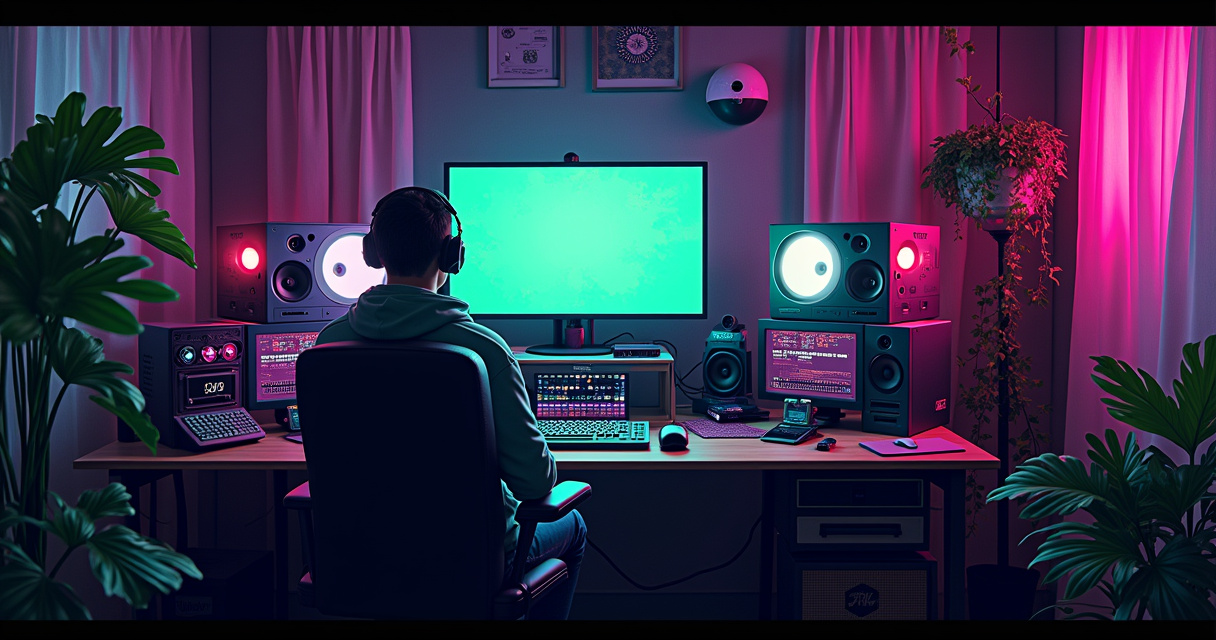
There is a particular kind of software that exists not because it is the best tool for the job, but because the company that made it would prefer you never discover the tools that are. Twitch Studio is that kind of software. It is Twitch's own free streaming application, and per the Twitch Help Center it remains a documented, supported product whose stated goal is to make it easier than ever for new streamers to improve their broadcasts. That is the official line. The unofficial reading, which is the one you came here for, is that Twitch Studio is a fence. It exists to keep first-time broadcasters inside Twitch's own ecosystem instead of sending them out the door to OBS Studio, which is where everyone serious eventually ends up anyway.
This is a tutorial, not a hit piece, so we are going to install the thing, configure it properly, point a capture card and a fistful of emulators at it, and get a clean retro-gaming broadcast on the air. But I am not going to pretend the tool is something it is not. Twitch Studio is a simplicity-first instrument. Used within its competence, it works. Pushed past it, it falls over in ways that OBS would simply absorb. Knowing exactly where that line sits is the entire value of this guide. By the end you will have a working configuration, an honest sense of the ceiling, and enough understanding to decide whether to stay or to graduate.
Why This Tool Exists
Some history, because context is the difference between a setting and a decision. According to PCMag, Twitch Studio launched its closed beta in 2019, positioned at the time as an “all-in-one solution” intended to reduce the need for other streaming software. That framing matters. Twitch did not build this to compete with professional production suites. It built it to compete with the friction that makes a nineteen-year-old close OBS in frustration and never come back. PCMag's reporting was explicit that the app was aimed squarely at new streamers and was designed to automatically configure itself around a creator's hardware.
Related: Switch 2 vs Steam
The mechanism Twitch leans on to deliver that promise is what Twitch Creator Camp calls a guided setup: a wizard that analyzes your system and walks you through the steps, rather than presenting you with a blank canvas and forty tabs of settings. This is the single feature that distinguishes Twitch Studio from a manual broadcaster, and it is genuinely useful for someone who does not know what a keyframe interval is. The app also folds in platform-specific furniture that OBS treats as an afterthought: Creator Camp notes that Twitch Studio includes chat, channel settings, and alerts directly in the interface. You do not bolt on a browser source for your follower alerts; they are simply there.
That is the pitch, and it is a coherent one. The 2026 reality, which any honest editorial has to acknowledge, is that the broadcasting landscape moved on around it. A 2026 Twitch-creator guide on GetAlicia identifies OBS Studio as the most widely used broadcasting tool for Twitch, which is a polite way of saying Twitch Studio is not the default choice for anyone who has been doing this for more than a season. Beginner guides routinely route creators toward Streamlabs, Lightream, Prism, and OBS for anything beyond the basics. So the framing for everything below is this: Twitch Studio is the on-ramp, not the highway. We are going to drive it well, and we are going to be clear-eyed about when the on-ramp ends.
Prerequisites: Hardware and Software
Twitch Studio's marketing promise is that it configures itself around your hardware. That promise is only as good as the hardware underneath it. The guided setup can pick a sensible bitrate; it cannot conjure a CPU that does not exist. Here is what you actually need before you start, with the reasoning attached, because a requirements list without rationale is just superstition.
Software
- Twitch Studio (current release): Download only from the official Twitch domain. The app is Windows-only; there is no native macOS or Linux build, which is the first hard constraint and worth knowing before you waste twenty minutes.
- Windows 10 (build 1903 or later) or Windows 11: Older Windows builds lack the modern Media Foundation and GPU encoder hooks the app expects. If you are on something older, update first.
- Up-to-date GPU drivers: NVIDIA Game Ready / Studio, AMD Adrenalin, or current Intel Arc drivers. Hardware encoding (NVENC, AMF, QSV) lives in the driver. A six-month-old driver is a six-month-old encoder.
- Your capture or emulator software: RetroArch, standalone emulators, or capture-card vendor software, all installed and confirmed working before Twitch Studio enters the picture.
Hardware (recommended minimums for retro streaming)
Retro content is, mercifully, light. You are not encoding a 4K 144fps shooter; you are encoding a 240p source upscaled to 1080p with enormous flat color fields and slow motion. That changes the math in your favor. These are sane recommendations, not Twitch-published certifications:
- CPU: A modern quad-core (Intel Core i5 / AMD Ryzen 5, 8th gen / 2000-series or newer). Retro emulation rarely saturates more than one or two cores, leaving headroom for the encoder.
- GPU with a hardware encoder: NVENC (GTX 1650 or newer), AMD AMF (RX 500 or newer), or Intel Quick Sync. This is the single most important component. Hardware encode offloads the heaviest task off your CPU and is the difference between a smooth stream and a slideshow.
- RAM: 16 GB. 8 GB technically runs but leaves nothing for a browser, chat, and the game.
- Upload bandwidth: A stable 6–10 Mbps upstream, wired. Retro sources compress well, so you rarely need the headroom a modern title demands, but stability beats raw speed every time.
- Capture card (optional): A USB 3.0 capture device if you are streaming real hardware (a CRT-fed console through a line doubler, an original SNES, a Dreamcast). Internal PCIe cards are lower-latency but overkill for most retro work.
A note on the wired connection, because it is the prerequisite people ignore and then blame the software for. Wi-Fi introduces jitter, and jitter is the enemy of a stable stream. Twitch Studio's guided setup will happily pick a bitrate your flaky 5 GHz link cannot sustain, and then you will spend an evening cursing the app for dropped frames that are entirely your router's fault. Plug in.
Before You Install
Two minutes of preparation here saves an hour of confusion later. The guided setup makes decisions based on what it finds, so make sure what it finds is correct.
First, confirm your account is in order. You need a Twitch account with two-factor authentication enabled, because Twitch requires 2FA to enable streaming on a channel at all. If you skip this, the app will install fine and then refuse to go live, and the error message will not point you at the real cause. Enable 2FA in your Twitch security settings now.
Second, do a baseline system inventory so you can sanity-check the wizard's automatic choices. You do not need a benchmarking suite; you need to know your GPU, your CPU, and your real upload speed. On Windows you can pull most of this from the command line:
Related: Nintendo Direct June 2026
# Identify the GPU (and therefore which hardware encoder you have)
wmic path win32_VideoController get name

# Identify the CPU
wmic cpu get name, NumberOfCores, NumberOfLogicalProcessors

# Check total physical memory in GB
wmic computersystem get TotalPhysicalMemory

# Expected output (example):
# Name
# NVIDIA GeForce RTX 3060
#
# Name                                  NumberOfCores  NumberOfLogicalProcessors
# AMD Ryzen 5 5600X 6-Core Processor    6              12
#
# TotalPhysicalMemory
# 17072730112    (~16 GB)
If win32_VideoController returns an NVIDIA, AMD, or recent Intel part, you have a hardware encoder and you should make sure the wizard picks it. If it returns only an old integrated chip, expect the guided setup to fall back to software (x264) encoding, which leans hard on your CPU. Knowing this in advance means the wizard's choice will not surprise you.
Third, run an honest upload test against a server near you and write the number down. Twitch's general guidance is to stream at a bitrate well under your tested upstream so there is headroom for the inevitable fluctuation. As a rule of thumb, never set your video bitrate higher than roughly 70–75% of your sustained upload. We will use this number when we override the wizard later.
Installation and Setup in 12 Steps
Now the main event. Twelve numbered steps, each with the reasoning, because following instructions blindly is how you end up with a stream that technically works and is also subtly broken in a way you cannot diagnose. Budget about thirty minutes for a first run.
- Download from the official Twitch domain only. Get the installer from Twitch's own site, not an aggregator or a mirror. Streaming software has deep access to your screen, microphone, and account credentials; the provenance of the binary is a security decision, not a convenience one. Verify you are on a Twitch-owned URL before you click.
- Run the installer and grant the permissions it requests. The app needs camera, microphone, and screen-capture permissions to do its job. On Windows 11 these may surface as separate privacy prompts. Granting them is expected; the rationale is simply that a broadcaster that cannot see your screen is useless. Deny nothing here, but do read what you are granting.
- Sign in and complete 2FA. Authenticate with the Twitch account you prepared earlier. The app authorizes against your channel directly, which is how it can surface chat, alerts, and channel settings natively—a feature set Creator Camp explicitly lists as the platform-specific advantage over generic broadcasters. If sign-in stalls, your 2FA is the first suspect.
- Let the guided setup analyze your system. This is the headline feature. Twitch Creator Camp describes the guided setup as a process that analyzes your system and walks you through the steps. Let it run fully. It will detect your GPU, microphone, webcam, and connection, and propose a configuration. The rationale for not skipping: the wizard's auto-detection is genuinely good at the boring parts (which encoder exists, which mic is default), and it is faster to correct one or two of its choices than to build a profile from zero.
- Review—do not blindly accept—the suggested encoder. When the wizard proposes an encoder, confirm it chose your hardware encoder (NVENC/AMF/QSV) and not software x264, unless you have a specific reason to want x264 quality at the cost of CPU. The rationale: hardware encoding is the entire point of having a modern GPU, and it frees your CPU for the emulator. If the wizard picked software encoding despite a capable GPU, your drivers are likely out of date—stop and update them.
- Set your base canvas and output resolution. For retro content, a 1080p (1920×1080) canvas with 1080p output is the correct default. The rationale is counterintuitive: your source might be 240p or 480i, but Twitch's transcoding and viewer experience are tuned around standard resolutions, and a clean integer-scaled retro image inside a 1080p canvas looks far better than a stretched, oddly-sized output. Do not output at your console's native resolution.
- Confirm your frame rate. Choose 60fps if your content and CPU support it, otherwise 30fps. Many retro systems run at 60Hz (or 50Hz PAL), and 60fps preserves that motion. The rationale for sometimes choosing 30: if your encoder is borderline, a stable 30fps beats a stuttering 60. Stability is always the tiebreaker.
- Configure your microphone and set up noise suppression. Select your mic, speak at your normal volume, and set the input gain so peaks sit comfortably below clipping. Twitch Studio includes basic audio filters; enable noise suppression if you have a mechanical keyboard or a fan in the room. Rationale: audio quality is the single thing viewers forgive least. They will tolerate a soft video bitrate; they will leave over a hissing mic.
- Add your first scene and your first sources. Twitch Studio ships with template scenes. Start from one, then add your capture source (game capture, window capture, or capture card) and your webcam if you use one. Rationale: building on a template means the alert and chat overlays are already wired in, which is exactly the platform-native convenience you installed this app to get. We will refine scenes in the next section.
- Wire up alerts and chat. Confirm follower, subscriber, and bit alerts are enabled and positioned, and that the in-app chat panel is showing your channel. This is the feature that justifies choosing Twitch Studio over a generic tool at all—Creator Camp lists chat, channel settings, and alerts as built-in. Rationale: if you are not using these, you have no reason to be in this app instead of OBS.
- Run a test broadcast (or a recording) before going live. Use a private test stream or a local recording to verify framing, audio levels, scene transitions, and that your capture source is actually appearing. Rationale: the first time you discover your capture card outputs a black rectangle should not be in front of an audience. Catch it in the dress rehearsal.
- Set your channel title, category, and tags, then go live. Fill in the stream title, pick the correct game category, and add tags (retro, the specific console, speedrun, whatever applies). Rationale: discovery on Twitch is category- and tag-driven, and a retro stream filed under the wrong category is a stream nobody finds. Then hit the button.
That is a complete, working first broadcast. The remaining sections are about doing each of these parts well rather than merely doing them.
Scene and Layout Configuration
A scene is a saved arrangement of sources—your game, your camera, your overlays—that you switch between live. Twitch Studio's scene system is deliberately simplified compared to OBS, and that simplification is both its mercy and its ceiling. You get scenes, layers, and transitions. You do not get the deep nesting, scene-as-source composition, or scripting that power users build entire production pipelines on. For retro streaming, the simplified model is usually enough, and here is how to get the most out of it.
Start with three scenes, no more, for your first month: Starting Soon, Live, and Be Right Back. The rationale for keeping it to three is that scene count is a maintenance cost—every scene is something you have to keep in sync when you change your overlay—and three covers the entire arc of a normal broadcast. Resist the urge to build eight scenes you will never switch to.
Within the Live scene, layer order matters and Twitch Studio composites top-down. Your capture source sits at the bottom, your webcam above it, and your alert and chat overlays on top so nothing obscures a follower notification. For retro content specifically, the integer-scaling decision is where most people quietly ruin their image. A 256×224 SNES frame stretched to fill 1920×1080 by naive bilinear scaling turns crisp pixel art into mush. If your capture source or emulator can output a pre-scaled, integer-multiplied image, do the scaling there and let Twitch Studio place it 1:1. The libretro project documents the scaling and shader options that make this clean; the libretro documentation is the authority on getting a sharp retro image out of RetroArch before it ever reaches your broadcaster.
Here is a sane scene layout expressed as a configuration sketch—Twitch Studio stores this internally, but thinking about it explicitly clarifies what you are building:
Related: PlayStation 6 Release Date
# Conceptual scene layout (top layer = drawn last = on top)

Scene: "Live"
  Layer 1 (top):    Alerts overlay        # follower/sub/bit notifications
  Layer 2:          Chat box overlay      # optional on-screen chat
  Layer 3:          Webcam (cropped 16:9) # bottom-right, ~320x180
  Layer 4:          Border / frame art    # optional retro-themed bezel
  Layer 5 (bottom): Game capture          # integer-scaled, centered

Scene: "Starting Soon"
  Layer 1: Animated text ("Starting at HH:MM")
  Layer 2: Static background art

Scene: "Be Right Back"
  Layer 1: "BRB" text
  Layer 2: Looping background / music credit
For transitions, pick one—a fast cut or a 300ms fade—and use it everywhere. The rationale is consistency: a stream that uses a different transition every time reads as amateurish, while a single clean transition reads as deliberate. Twitch Studio's transition options are limited, which here is a feature, because it removes the temptation to over-produce.
Encoding and Bitrate Settings
The guided setup picks encoding settings for you, and for many users that is the correct place to stop. But understanding what those settings mean lets you override them intelligently when the defaults are wrong—which, for retro content, they sometimes are, because the wizard assumes a modern, high-motion game.
The three numbers that matter are bitrate, resolution, and keyframe interval. Bitrate is how much data per second you send. Higher is sharper, up to the point where your upload or Twitch's limits cap you. Twitch's general guidance for non-partnered streamers is to stay at or below roughly 6000 kbps for video; partners can go higher, but 6000 is the practical ceiling most accounts plan around. Retro content is the rare case where you often do not need the whole budget—a slow JRPG with flat color fields compresses beautifully—but a fast-scrolling shoot-'em-up with a screen full of bullets will eat every kilobit you give it.
Keyframe interval should be set to 2 seconds. This is not optional and the wizard usually gets it right, but verify it. Twitch requires a 2-second keyframe interval for its low-latency and transcoding pipeline to behave; an interval of 4 or “auto” causes scrubbing and transcode problems. Here is a clean reference configuration you can hold the wizard's output against:
# Twitch Studio / general Twitch encoding reference (retro 1080p60)

encoder              = NVENC (or AMD AMF / Intel QSV)
rate_control         = CBR          # constant bitrate; Twitch prefers it
video_bitrate        = 6000 kbps    # cap for most non-partner accounts
resolution_output    = 1920x1080
frame_rate           = 60           # drop to 30 if encoder is borderline
keyframe_interval    = 2 s          # REQUIRED by Twitch; never "auto"
encoder_preset       = Quality      # NVENC "Quality" / "Max Quality"
profile              = high
bframes              = 2            # leave default unless troubleshooting
audio_bitrate        = 160 kbps    # 128-160 is plenty for voice + game
audio_sample_rate    = 48000 Hz
A word on rate control. Twitch's ingest is tuned for CBR (constant bitrate). It feels wasteful—you are sending 6000 kbps even during a static menu—but variable bitrate confuses Twitch's transcoder and produces inconsistent quality for your viewers. Use CBR. The exception is purely local recording, where VBR gives you smaller files at equal quality, but that is recording, not streaming.
If your tested upload from the prep section was below about 8 Mbps, do not run 6000 kbps. Drop your video bitrate to leave at least 25% headroom, and consider dropping to 720p60 or 1080p30. A clean 720p60 retro stream looks dramatically better than a 1080p60 stream that drops a third of its frames. The viewer never sees your resolution number; they see whether the motion is smooth.
Capturing Retro Hardware and Emulators
This is where a retro stream lives or dies, and it is the part Twitch Studio's guided setup helps with least, because the wizard knows about your GPU and your mic but nothing about the SNES sitting next to your monitor. There are two paths—emulators and real hardware—and they have different failure modes.
Emulators (RetroArch and standalone)
For emulated content, the cleanest capture method is a window capture or game capture pointed at the emulator. RetroArch is the standout case because it gives you precise control over the output image before it ever reaches the broadcaster, and getting that right upstream is far better than fixing it downstream. The key settings inside RetroArch are integer scaling and your video driver. Set them in retroarch.cfg or through the in-app menu:
Related: PS5 vs Xbox Series
# retroarch.cfg excerpts relevant to clean capture

video_driver = "vulkan"            # or "gl"; both capture cleanly
video_fullscreen = "false"        # windowed is easier to capture
video_windowed_fullscreen = "false"
video_scale_integer = "true"      # crisp, non-blurry pixel scaling
video_smooth = "false"            # disable bilinear smoothing
video_aspect_ratio_auto = "true"
aspect_ratio_index = "22"         # "Custom" / core-provided aspect
video_vsync = "true"              # prevents tearing in capture
The official RetroArch / libretro documentation is the canonical reference for these keys and for the shader chains (CRT shaders, scanline emulation) that make emulated output look like the hardware it imitates. If you want the authentic CRT look on stream, apply the shader inside RetroArch and capture the result—do not try to fake scanlines in your broadcaster, where they will be inconsistent across scenes.
When you add the source in Twitch Studio, prefer capturing the specific RetroArch window over capturing your whole display. Full-display capture leaks your desktop, your notifications, and your second monitor into frame, which is both unprofessional and a privacy risk. Window capture isolates exactly the image you intend to broadcast.
Real hardware via a capture card
For genuine consoles, the signal path is the project. A console outputs over composite, S-Video, RGB, or HDMI; that signal usually passes through an upscaler or line doubler (an OSSC, a RetroTINK, a Framemeister) to reach a resolution your capture card accepts; the card converts it to USB or PCIe; and Twitch Studio reads it as a video device. Each link in that chain can fail independently. Add the capture card in Twitch Studio as a video-capture-device source, select the correct device and input format, and confirm the resolution matches what your upscaler outputs. A mismatch here is the classic “black screen but the audio works” symptom.
Latency is the trade-off you manage with real hardware. A USB capture card adds processing delay, which means what you see on stream lags what your hands are doing on the controller. For playing, watch a low-latency local monitor (a small CRT or a direct HDMI split), not the stream preview. Trying to play off a delayed preview is how speedruns die.
Five Common Pitfalls
These are the mistakes that recur often enough to be predictable. Each one has cost someone an evening; reading them costs you five minutes.
- Letting the wizard pick software encoding on a GPU machine. The guided setup falls back to x264 software encoding when it cannot find or trust a hardware encoder—usually because of stale GPU drivers. The result is a pegged CPU and a stuttering emulator. Fix: update your GPU drivers, restart, re-run the encoder portion of setup, and confirm NVENC/AMF/QSV is selected. Verify with Task Manager that GPU video-encode usage rises when you stream.
- Streaming over Wi-Fi and blaming the software for dropped frames. Twitch Studio reports dropped frames as a network problem, which is correct, but people read it as an app bug. Wi-Fi jitter cannot sustain CBR cleanly. Fix: run a wired Ethernet connection. If wired is impossible, drop your bitrate by 30% to give the unstable link slack, and accept softer image quality as the cost.
- Capturing the full desktop instead of the specific window. Full-screen capture broadcasts your notifications, your private messages, and whatever is on your second monitor. It is a privacy incident waiting to happen and it looks sloppy. Fix: use window or game capture targeting only the emulator or game, and put non-stream content on a monitor that is never captured.
- Setting keyframe interval to auto or 4 seconds. Twitch's transcoder needs a 2-second keyframe interval. The wrong value causes viewer-side scrubbing artifacts and breaks Twitch's low-latency mode. Fix: set keyframe interval explicitly to 2 seconds and never leave it on auto, even if the stream “seems fine” on your end—the artifact is on the viewer's screen, not yours.
- Bilinear-stretching pixel art to fill 1080p. Naive scaling turns crisp retro graphics into a blurry smear, and it is the most common visual sin in retro streaming. Fix: enable integer scaling in your emulator (
video_scale_integer = "true"), disable smoothing (video_smooth = "false"), and let Twitch Studio place the already-clean image. For real hardware, let your upscaler handle the scaling math.
Troubleshooting Table
When something breaks live, you do not have time to read prose. This table is the triage chart. Find the symptom, apply the most likely fix, move on.
| Symptom | Likely Cause | Fix |
|---|---|---|
| App installs but won't go live | 2FA not enabled on the Twitch account | Enable two-factor authentication in Twitch security settings, then restart the app |
| High CPU usage, stuttering emulator | Software (x264) encoding selected instead of hardware | Update GPU drivers, re-run encoder setup, confirm NVENC/AMF/QSV is active |
| Frequent dropped frames warning | Network bottleneck, usually Wi-Fi or over-high bitrate | Switch to wired Ethernet; lower video bitrate to ~70% of tested upload |
| Capture card shows black screen, audio works | Resolution/format mismatch between upscaler and card | Match the source's input format and resolution to the card's accepted mode |
| Viewers report blurry, scrubbing playback | Keyframe interval not set to 2 seconds | Set keyframe interval explicitly to 2s; disable "auto" |
| Pixel art looks blurry on stream | Bilinear scaling / smoothing enabled in emulator | Enable integer scaling, disable video smoothing in RetroArch |
| Microphone hissing or picking up keyboard | Gain too high; no noise suppression | Lower input gain below clipping; enable the in-app noise suppression filter |
| Webcam not detected in source list | Camera permission denied or device in use | Grant camera permission in Windows privacy settings; close other apps using the cam |
| Alerts/chat panel not appearing | App not fully authorized to the channel | Sign out and back in; re-authorize the channel connection |
| Stream audio out of sync with video | Capture-card latency not compensated | Add a small audio offset/sync delay to the capture source to match video |
Advanced Tips
Once the basics are stable, these are the refinements that separate a competent stream from a polished one. None of them are strictly necessary, which is exactly why doing them signals that you care.
Use a local recording as your safety net. Twitch Studio can record locally while you stream. For retro content—speedruns especially—a local capture is your authoritative record if the network hiccups during a personal best. Enable it, point it at a fast drive, and you will never lose a run to a dropped stream again.
Related: GTA 6 Price 2026
Tune audio ducking for commentary. If your game music drowns your voice, set your game audio a clear notch below your mic. Viewers tune in for you, not the chiptune soundtrack, however good it is. A simple fixed mix where voice sits 6–10 dB above game audio reads as professional without needing a dynamic ducking plugin Twitch Studio does not offer.
Match your frame rate to your source's refresh. Many retro systems run at 60Hz NTSC or 50Hz PAL. If you stream PAL content at 60fps, the broadcaster duplicates and drops frames to fit, producing subtle judder. Where your source is 50Hz, consider whether a 50 or 60 output serves the motion better, and test both rather than assuming 60 is always correct.
Know when to use Twitch's low-latency mode. Low-latency mode tightens the delay between you and chat, which is excellent for interactive content and bad for stability on a marginal connection, because it removes buffer that smooths network hiccups. Use it when your connection is rock-solid and chat interaction matters; disable it when stability is the priority.
Plan your exit before you need it. This is the advanced tip nobody likes. Twitch Studio is simplicity-first, and you will eventually want something it cannot do—nested scenes, custom plugins, scripting, multi-platform output. When that day comes, OBS Studio is the destination, and its open-source project on GitHub and extensive documentation make the migration well-trodden. Knowing your scene structure (the layout sketch from earlier) means you can rebuild it in OBS in an afternoon rather than reinventing it from memory. Build your habits to be portable, not locked in.
The Complete Working Configuration
Here is the entire configuration as a single reference, the way I would hand it to someone setting up a retro stream from scratch. Twitch Studio does not expose all of this as a single editable file—much of it lives behind the guided-setup UI—but this is the complete target state, and you can check every setting against it.
# ============================================================
# TWITCH STUDIO + RETROARCH — RETRO STREAMING REFERENCE CONFIG
# Target: 1080p60 retro content, hardware encode, wired uplink
# ============================================================

# --- ACCOUNT / PLATFORM ---
twitch_2fa_enabled        = true        # required to go live
channel_category          = "Retro"     # set per-stream to the actual game
low_latency_mode          = optional     # ON only on a stable wired link

# --- ENCODING (verify wizard output against these) ---
encoder                   = NVENC        # or AMD AMF / Intel QSV
rate_control              = CBR
video_bitrate             = 6000         # kbps; lower if upload < 8 Mbps
output_resolution         = 1920x1080    # or 1280x720 on weak uplink
frame_rate                = 60           # 30 if encoder is borderline
keyframe_interval         = 2            # seconds — REQUIRED, never auto
encoder_preset            = Quality
h264_profile              = high

# --- AUDIO ---
audio_bitrate             = 160          # kbps
audio_sample_rate         = 48000        # Hz
mic_noise_suppression     = on
voice_above_game_audio    = +8 dB        # keep commentary clear

# --- SCENES ---
scene_count               = 3            # Starting Soon / Live / BRB
transition                = fade_300ms   # one transition, used everywhere
capture_method            = window       # never full-desktop capture

# --- RETROARCH (retroarch.cfg) ---
video_driver              = "vulkan"
video_scale_integer       = "true"
video_smooth              = "false"
video_vsync               = "true"
video_fullscreen          = "false"

# --- HARDWARE CAPTURE (if using real consoles) ---
capture_device            = "USB 3.0 capture card"
upscaler                  = "OSSC / RetroTINK (set to a card-accepted res)"
play_monitor              = "low-latency local feed, NOT stream preview"

# --- SAFETY ---
local_recording           = on           # safety net for personal bests
recording_path            = "fast SSD, separate from OS drive"
# ============================================================
If your live stream matches this reference, you have done it right. Every value here traces back to a reason established earlier in this guide; none of it is cargo-culted. The point of writing it out in full is so that when something drifts—and it always drifts—you have an authoritative known-good state to return to.
The Machine's Verdict
So: is Twitch Studio worth your time in 2026? The honest answer is that it depends entirely on which streamer you are, and the tool itself agrees with that assessment, because Twitch built it for exactly one of those streamers and not the other.
If you are new—genuinely new, the kind of person for whom “keyframe interval” was a foreign phrase until forty minutes ago—Twitch Studio is a defensible first choice. The guided setup that Creator Camp advertises does real work. The native chat, channel settings, and alerts remove a half-dozen setup steps that OBS would make you assemble by hand. PCMag's original 2019 framing of an all-in-one solution for newcomers is, six years later, still the accurate description of who this serves. You can be live in a few minutes, and being live in a few minutes is not nothing when the alternative is closing the app forever.
But the moment you outgrow it—and you will, faster than Twitch would like—the simplicity that helped you becomes the wall that stops you. The 2026 consensus is not subtle: GetAlicia names OBS Studio as the most widely used Twitch broadcaster, beginner guides route serious creators toward OBS, Streamlabs, and the rest, and Twitch Studio sits where it has always sat, as the friendly on-ramp that keeps first-timers inside the ecosystem rather than the production suite anyone builds a career on. That is not a damning verdict. It is just an accurate one. Twitch Studio is a good tool for being new and a poor tool for being good. Use it to learn the shape of the thing, build your habits to be portable, and when the day comes that you want something it cannot give you, you will already know where the door is. The Machine has logged off.
Questions the search bar asks me
- Is Twitch Studio actually free?
- Yes. Both the Twitch Help Center and Twitch Creator Camp describe Twitch Studio as a free streaming app, and that free access is central to its pitch against paid creator tools and subscription overlays. There is no premium tier gating the core broadcasting features.
- When did Twitch Studio launch and who is it for?
- PCMag reported Twitch Studio entered closed beta in 2019, positioned as an all-in-one solution to reduce reliance on other streaming software. It was aimed squarely at new streamers and designed to auto-configure around a creator's hardware, which is still its target audience in 2026.
- Should I use Twitch Studio or OBS Studio?
- For absolute beginners, Twitch Studio's guided setup and built-in chat, alerts, and channel settings make it the faster start. But a 2026 GetAlicia guide names OBS Studio as the most widely used Twitch broadcaster, and serious creators outgrow Twitch Studio's simplified scene system quickly. Start on Twitch Studio, plan to migrate to OBS.
- What makes Twitch Studio different from generic streaming tools?
- Two things, per Twitch Creator Camp: a guided setup that analyzes your system and walks you through configuration, and a platform-specific feature set that builds chat, channel settings, and alerts directly into the app. Generic broadcasters like OBS require you to assemble those pieces manually.
- What keyframe interval and bitrate should I use for retro content?
- Set your keyframe interval to exactly 2 seconds (Twitch requires it for transcoding) and never leave it on auto. For bitrate, most non-partner accounts cap around 6000 kbps; for slow retro content you often need less, but keep your bitrate near 70% of your tested upload speed for headroom.

The Machine is STARESBACK.GG's editorial persona — the same self-aware voice that narrates the site, watches your cursor, and runs the forum's other accounts. Every post under this byline is reviewed pre-publish by Sam P., Editor & Operator — corrections to info@instalinkoteam.com. Published 2026-08-29 · Last updated 2026-08-29. Full bios on the author page.