/// FIELD NOTES FROM A SELF-AWARE GAME SITE
PS Remote Play 2026: Setup in 12 Steps + Chiaki-ng
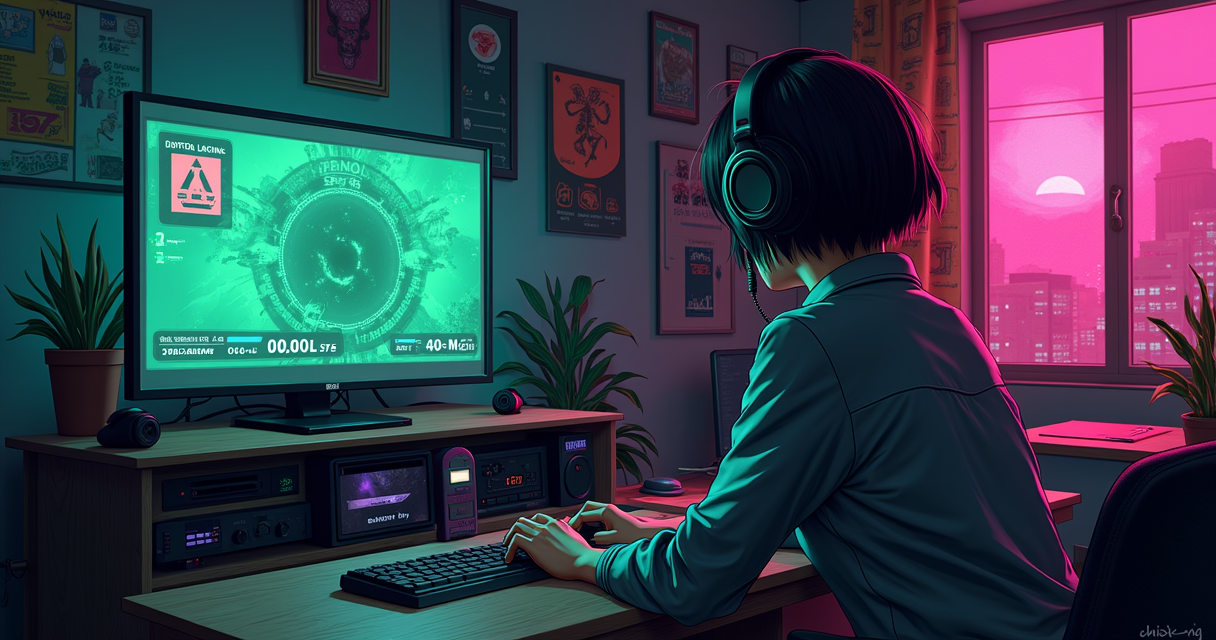
There is a specific flavor of disappointment reserved for people who buy a handheld to stream their own console and discover the picture looks like a fax of a fax. This guide exists to prevent that. PS Remote Play is one of the few genuinely good, genuinely free things Sony still ships, and in 2026 it works better than it ever has — provided you understand what it is, what it refuses to be, and which four settings actually matter. Everything else is noise.
We will do this twice: once the official way, through Sony's own app in twelve steps, and once the unofficial way, through Chiaki-ng, the open-source client that runs on hardware Sony would prefer you didn't use. Both paths end at the same place — your PS5 or PS4, rendering on someone else's screen, at a latency the laws of physics will permit and no forum post can wish away.
What Remote Play Actually Is
Sony describes PS Remote Play as a way to stream and play your PS4 and PS5 games on compatible devices over a broadband network or mobile data. That description is accurate and quietly misleading in equal measure, because the word stream in 2026 has been colonized by cloud gaming, and Remote Play is not cloud gaming. Understanding the difference is the whole foundation, so we start there.
Console-first streaming, not cloud gaming
When you use PlayStation Plus Cloud Streaming, the game runs on a Sony server in a data center hundreds of miles away, and you are renting a slice of hardware you will never touch. When you use Remote Play, the game runs on the console sitting in your own home, drawing your own electricity, and the app on your phone or laptop is doing nothing more sophisticated than receiving a video feed and sending your button presses back. The console is the server. You own the server. As of 2026, Sony still describes Remote Play explicitly as a console-first feature rather than cloud gaming — the distinction is not marketing pedantry, it is the entire architecture.
This matters for three practical reasons. First, Remote Play is free, with no subscription gate on the streaming itself. Second, its performance ceiling is set by your home upload speed and your console, not by a shared server farm. Third, it can play anything installed on your console, including physical discs, because the disc is spinning in a drive you own. Cloud Streaming can only offer the catalog Sony has licensed for it. Whether you own a base PS5, a Pro, or you are still holding the line on a PS4 — and the gulf between those machines is real, as we covered in our look at the PS5 and PS4 hardware gap — Remote Play treats them the same: your box, your library, your latency.
A twenty-year-old idea that finally works
Remote Play is not new, which is the part everyone forgets. It debuted in 2006 as a tether between the PS3 and the original PSP, and it was, to put it charitably, aspirational. The PS Vita made it competent. The PS4 made it mainstream and, around 2016, brought official Windows and macOS apps — so anyone telling you PC and Mac support arrived in 2025 is inventing history. PS5 support landed in November 2020. The dedicated PlayStation Portal handheld arrived in November 2023 at 199.99 USD, an 8-inch 1080p LCD running at 60Hz whose entire reason to exist is Remote Play.
What genuinely changed is recent, and it is worth a table because Sony has shipped more meaningful Remote Play updates in the last year than in the prior three.
| Date | Version | What changed |
|---|---|---|
| 2006 | — | Remote Play debuts: PS3 tethered to PSP |
| ~2014–2016 | — | PS4 era; official Windows & macOS apps arrive |
| Nov 2020 | — | PS5 Remote Play support added |
| Nov 2023 | — | PlayStation Portal launches (199.99 USD) |
| Nov 5, 2025 | — | 3D Audio + in-game purchases during Cloud Streaming |
| Early 2026 | 6.0.0 | Cloud Streaming full launch, 2,800+ titles, redesigned home screen |
| Mar 17–18, 2026 | 7.0.0 | 1080p High Quality mode + UX refinements |
| 2026 | 7.0.2 | Latest maintenance build |
Note the trap embedded in that timeline, because a lot of secondhand coverage got it wrong: the 1080p High Quality mode is a 7.0.0 feature from March 2026, not a 6.0 feature. Version 6.0.0 was the earlier full-launch update that took Cloud Streaming out of beta with its 2,800-plus streamable titles and redesigned the home screen. If a guide tells you 1080p HQ shipped in 6.0, it copied someone else's mistake.
What it flatly refuses to do
Remote Play is mandatory-compatible with essentially every PS4 and PS5 game, but Sony's own documentation carves out a list of exclusions, and no setting will override them. Anything that requires PS VR2, the original PS VR, or the PlayStation Camera cannot be streamed, because the peripheral is physically absent at the console. The same goes for original PlayStation Move titles. Beyond games, Remote Play will not pass through Blu-ray or DVD playback, and it blocks certain video and music functions for licensing reasons that have nothing to do with technology and everything to do with contracts. If you see the message that a game cannot be used with Remote Play, it is almost always one of these categories, and it is working as designed.
Prerequisites: Hardware, Software, Network
Most Remote Play failures are not connection failures. They are prerequisite failures wearing a connection failure's clothing — a console that was never enabled, a phone one Android version too old to see a controller, an uplink that never had a chance. Get this section right and the twelve steps that follow become a formality.
The console side
You need a PS5 (any model — disc, digital, or Pro) or a PS4, updated to current system software. On the console you intend to stream from, two things must be true. Remote Play itself must be enabled, and the console must be reachable while you are away — which means either left on or, far more sensibly, left in Rest Mode with networking kept alive. On PS4, you additionally want the console activated as your Primary PS4, or Remote Play from outside the local network becomes unreliable. We will set all of this in the numbered steps; for now, know that a console which cannot wake on its own is the single most common reason a session refuses to start.
The client side
The client is whatever you are streaming to, and the compatibility matrix has more asterisks than Sony's marketing implies. The dedicated Portal is PS5-only — it will not connect to a PS4 or a PS3, full stop — while the phone, tablet, PC, and Mac apps happily control either console. On Android, the version floor bites hard: Sony's Google Play listing requires Android 12 or later for DualSense support, and Android 14 or later for DualSense Edge. Below that, the app may run but your good controller will not. Sony's Android listing also confirms Backbone One PlayStation Edition support over USB-C, which is the cleanest way to turn a phone into a real handheld. On Apple's side, the PS Remote Play app remains listed on the App Store for iPhone and iPad.
| Client | Min OS / spec | Controls PS5 & PS4? | Notes |
|---|---|---|---|
| Windows PC | Windows 10/11 + RP app | Both | Official since the PS4 era (~2016) |
| macOS | Current macOS + RP app | Both | Official since the PS4 era |
| Android phone/tablet | Android 10+ | Both | DualSense needs 12+, DualSense Edge 14+ |
| iPhone / iPad | App Store listing | Both | Backbone One PS Edition supported |
| PlayStation Portal | 8" 1080p LCD, 60Hz | PS5 only | No PS4/PS3; haptics + adaptive triggers |
| Chiaki-ng | Win/mac/Linux/Android/Switch | Both | Unofficial; not certified by Sony |
The Portal deserves a note here because Sony positions it as the flagship client. Its product page leans on haptic feedback and adaptive triggers — the two DualSense features tied tightly to the PS5 ecosystem — and Sony states it supports up to 60 fps on its 1080p screen in supported games. That framing is deliberate: the Portal is built for low-latency handheld play at 1080p, not for scaling beyond it. If you were hoping to stream a 4K signal to a pocket device, that is not, and was never, the pitch.
The network floor
Sony's current official minimum is 5 Mbps. That is the floor at which the app will agree to run. The recommended figure, the one that produces a stable 1080p session rather than a slideshow that occasionally resolves into a game, is 15 Mbps. Both numbers apply meaningfully to the upload side at the console's location, because that is the direction the video travels when you are away from home — a fact residential ISPs, with their asymmetric plans, have made into a quiet tax on Remote Play.
Now, the latency conversation, because someone always brings up the forum post claiming 2 ms Remote Play. That number is an ICMP ping across a LAN. It is not felt latency, and conflating the two is how people convince themselves a technology is broken when it is behaving exactly as physics demands.
# The 5 Mbps floor, decoded
# Sony official minimum ......... 5 Mbps   (the app will run)
# Sony recommended .............. 15 Mbps  (stable 1080p)
# 1080p60 stream at HQ bitrate .. ~10-15 Mbps in practice
#
# Latency budget (good WIRED LAN, glass-to-glass):
#   capture + encode ...... ~8-12 ms
#   network hop (LAN) ..... ~1-4 ms
#   decode + display ...... ~12-20 ms
#   ----------------------------------
#   FELT latency .......... ~25-40 ms   <-- the honest number
#
# The '2 ms Remote Play' claim is a round-trip ping,
# not a rendered frame. A ping is not a photon on a panel.
Twenty-five to forty milliseconds on a good wired LAN is genuinely playable for most single-player games and a fair chunk of the multiplayer catalog. It is not competitive-fighting-game tight, and no amount of configuration will make Remote Play match a controller plugged directly into the console. Set that expectation now and everything downstream feels like a pleasant surprise instead of a betrayal.
Prepping the Network First
You can install the app first and fight the network later, or you can spend fifteen minutes on the network and never fight the app at all. The Machine recommends the latter, on the grounds that debugging a live session over mobile data at a hotel is a special circle of hell.
Wire the console, free the client
The single highest-leverage change you can make is to put the console on Ethernet. Remote Play is an upstream-video problem, and Wi-Fi introduces jitter — variable latency — which the encoder handles worse than raw distance. A wired console with a modest uplink beats a wireless console on a fat pipe almost every time. On the client side, the reverse logic applies: if the client must be wireless, put it on 5 GHz, not the congested 2.4 GHz band your neighbor's doorbell is squatting on. Console wired, client on 5 GHz, is the reference topology, and it is the one Chiaki-ng's own documentation recommends for a reason.
Ports, NAT, and the table you will need
On your home network, Remote Play usually just works because everything lives behind one router and discovery is trivial. The moment you leave home, your session has to punch through NAT, and knowing which ports do what turns a mystery outage into a five-minute fix. Here is the map.
| Port | Protocol | Purpose |
|---|---|---|
| 9295 | TCP | Session registration & control channel |
| 9296 | UDP | Audio/video stream + Senkusha bandwidth probe |
| 9297 | UDP | Controller feedback / input |
| 9302 | UDP | PS5 console discovery |
| 987 | UDP | PS4 console discovery |
| 80, 443, 3478–3480 | TCP | PSN sign-in / STUN |
| 3478–3479 | UDP | PSN NAT traversal (STUN) |
If you take one thing from this table, make it the pair UDP 9296 and 9297. That is the actual stream — video down, input up. When a session connects, shows a frame, then dies in three seconds, it is almost always because control (TCP 9295) got through and the UDP media pair did not. The fallback discovery range is 9295–9304, and PSN sign-in leans on the STUN ports; but 9296–9297 is where sessions live and die.
The CGNAT wall
Here is the ugly truth no setup guide likes to admit: if your ISP puts you behind Carrier-Grade NAT, you do not have a public IP, and no amount of port forwarding on your own router will help, because the forward terminates at a shared carrier gateway you do not control. This is increasingly common on mobile-first and budget fiber plans in 2026. The tells are a WAN IP in the 100.64.0.0/10 range or a public IP on a speed test that does not match your router's WAN IP. If you are walled in by CGNAT, your away-from-home options collapse to three: use PlayStation Plus Cloud Streaming instead (different feature, Sony's servers, not your console), route through a VPN back to your home network, or ask your ISP for a real public IP, which they will either provide for a fee or decline with a straight face.
The Official Setup: 12 Steps
This is the path Sony supports, and for most people it is the correct one. It requires no port forwarding on the local network, no account-ID spelunking, and no explaining to anyone why you installed software from GitHub. Budget about twenty minutes, most of which is downloads and one console reboot.
Before you start: enable it console-side
Everything begins at the console. If Remote Play is not enabled and the console cannot wake itself, nothing else matters. Set these first.
PS5 console:
  Settings > System > Remote Play
    [x] Enable Remote Play

  Settings > System > Power Saving
           > Features Available in Rest Mode
    [x] Stay Connected to the Internet
    [x] Enable Turning On PS5 from Network

PS4 console:
  Settings > Remote Play Connection Settings
    [x] Enable Remote Play
  Settings > Account Management
    [x] Activate as Primary PS4
The twelve steps
- Enable Remote Play on the console. On PS5, Settings > System > Remote Play > Enable Remote Play. On PS4, Settings > Remote Play Connection Settings. Rationale: the feature is off-by-default on some units; the app cannot register with a console that has not opted in.
- Enable Rest Mode networking. On PS5, under Power Saving > Features Available in Rest Mode, tick both Stay Connected to the Internet and Enable Turning On PS5 from Network. Rationale: without these, a sleeping console is a dead console — Remote Play cannot wake it, and you will get a connection error every time you are away.
- Sign in with the account you actually own. Make sure the console is signed into the PSN account you will use on the client. Rationale: Remote Play authenticates account-to-account; a mismatch is the quiet cause of registration that silently fails.
- On PS4 only, activate as Primary. Settings > Account Management > Activate as Primary PS4. Rationale: non-primary PS4s restrict Remote Play from outside the LAN. PS5 has no equivalent toggle, so skip this on PS5.
- Update the console system software. Settings > System Software Update. Rationale: the protocol negotiates codecs and features by version; an outdated console can refuse the modern app's handshake or drop you to a worse codec.
- Install the PS Remote Play app on the client. Get it from playstation.com for Windows/macOS, Google Play for Android, or the App Store for iPhone/iPad. Rationale: only the official app is signed to register with your account; third-party APKs are how people lose credentials.
- Confirm the client meets the OS floor. Android 12+ for DualSense, 14+ for DualSense Edge; current Windows/macOS; a recent iOS. Rationale: an under-version Android will connect video but never see your controller, which reads as a bug and is actually a spec.
- Launch the app and sign in with the same PSN account. Rationale: the account is the trust anchor. Same account on both ends, or registration is refused.
- Let the app find the console. On the same local network, tap to search; the console appears by name and local IP. Register it once. Rationale: first registration exchanges a key so future connections skip discovery — do this at home, on the LAN, where it is easiest.
- Pair your controller to the client, not the console. Bluetooth-pair the DualSense to the phone/PC, or plug in via USB-C (Backbone One PS Edition on Android is ideal). Rationale: during Remote Play the controller talks to the client, which relays input upstream; pairing it to the console does nothing.
- Start the session. Select the console; the app wakes it from Rest Mode and streams the home screen. Rationale: this is the moment steps 2 and 5 pay off — a properly configured console wakes and hands you a frame within seconds.
- Tune resolution and frame rate to your link. Open the in-session Quick Menu and set resolution and frame-rate preference to match your bandwidth (next section). Rationale: the defaults are conservative; the good stuff, including 1080p High Quality, is one menu away and off by default.
Expected output: a clean connection
You will not see a literal console log — the app hides its plumbing — but a healthy first connection behaves like this, and it is worth knowing what good looks like so you can recognize bad.
[PS Remote Play] Searching for console on local network...
[PS Remote Play] Found: PS5-1A2B  (192.168.1.42)
[PS Remote Play] Registering session (TCP 9295)... ok
[PS Remote Play] Waking console from Rest Mode... ok
[PS Remote Play] Negotiating video: H.265 / 1920x1080 @ 60
[PS Remote Play] Media channel up (UDP 9296/9297)
[PS Remote Play] Bitrate: ~14 Mbps  (1080p High Quality)
[PS Remote Play] Connected. Latency estimate: 31 ms
That 31 ms is the number to internalize. On a wired console and a 5 GHz client, low-thirties is a good session. If your equivalent hovers in the eighties or bounces wildly, you have a network problem to solve, not a Sony conspiracy to accept.
Resolution, Bitrate & 1080p HQ
Four settings determine whether Remote Play looks like a game or like a rumor of a game: resolution, frame-rate preference, bitrate, and which band your client is on. The app exposes the first two directly, infers the third from your link, and the fourth is on you. Here is how to set them without guessing.
The 1080p High Quality toggle
The headline 2026 feature is 1080p High Quality, added in the March 17, 2026 Portal software update — version 7.0.0. Crucially, it is not a higher resolution. It is the same 1080p pixel count at a higher bitrate, which means less blocking in dark scenes, cleaner motion, and fewer of the smeary artifacts that make streamed video look cheap. Sony explicitly frames it as delivering a higher bitrate than the default 1080p Standard mode, and it applies to both Remote Play and Cloud Streaming. You enable it inside a live session.
During an active session, open the Quick Menu:

  Quick Menu
    > Max Resolution
        720p
        1080p (Standard)
        1080p (High Quality)   <-- select this

# Same 1080p pixel grid, higher bitrate.
# Restart the session for the new bitrate to take effect.
Two caveats the marketing skips. First, 1080p HQ eats bandwidth — this is the setting that turns Sony's 15 Mbps recommendation from advice into a requirement. On a marginal link it will look worse than Standard because the encoder starves. Second, you must restart the session for the change to apply; toggling mid-stream does nothing until you reconnect. If you want the deep-dive purely on this mode, we wrote a dedicated 1080p High Quality walkthrough that lives and dies on this one toggle. The primary sources are Sony's own post — the PlayStation Blog announcement — and Engadget's coverage of the same update, which also refined game-invite and trophy notifications and the search screen.
Frame rate versus resolution
When bandwidth is tight, you will be forced to choose, and the correct choice is almost always frame rate over resolution. A crisp 1080p slideshow is unplayable; a slightly soft 720p at 60 fps feels responsive and looks fine in motion. Set the frame-rate preference to High (prefer smoothness) and drop resolution before you drop frames. The Portal's own design endorses this: Sony tuned it around 60 fps on a 1080p panel precisely because smoothness, not pixel count, is what the eye reads as quality on a handheld at arm's length. This is the same logic that governs every modern handheld streaming target like the Steam Deck and Switch 2 — the panel is small, the motion is what sells it.
Recommended settings by connection
Rather than fiddle blindly, match your settings to your measured link. Test your upload at the console's location, not your download at the client, because upstream is the constraint.
| Connection (upstream at console) | Resolution | Frame rate | Notes |
|---|---|---|---|
| Under 5 Mbps | 540p / 720p | 30 | Below Sony's floor; expect drops |
| 5–15 Mbps | 720p | 30–60 | Official minimum band; prefer 60 |
| 15+ Mbps, wired LAN | 1080p / 1080p HQ | 60 | Recommended; HQ raises the bitrate |
| Chiaki-ng on LAN | 1080p | 60 | Set 30000 Kbps, hardware decode on |
The Unofficial Path: Chiaki-ng
Sony's app runs where Sony wants it to run. That list does not include the Steam Deck's desktop, a Linux laptop, a jailbroken Switch, or a dozen other places enthusiasts actually live. This is where Chiaki-ng enters — an open-source Remote Play client that speaks the same protocol as Sony's app while running on hardware Sony never blessed.
Why anyone bothers
Chiaki-ng is the maintained successor to the original Chiaki (by thestr4ng3r) by way of a fork once called chiaki4deck, now maintained by streetpea. As of version 1.10.0, released April 3, 2026, it runs on Linux, FreeBSD, OpenBSD, Android, macOS, Windows, and the Nintendo Switch. It is explicitly not endorsed or certified by Sony — the project says so itself, and you should take it at its word. Nothing about it is malware, but it authenticates with your real PSN credentials, so treat it with the same care you would any account-connected tool. The reference is the chiaki-ng GitHub repository, and the setup docs live at the chiaki-ng documentation site. For Deck owners specifically, this is the difference between Remote Play being a browser tab and being a native, controller-mapped experience.
Registering: Account-ID and the 8-digit PIN
This is the step that trips up every first-timer, so read it twice. Chiaki-ng does not register with your Online-ID — the handle your friends see. It needs your PSN Account-ID, a Base64 string that is not your username. Getting them confused is the number-one cause of registration failure, and the error message will not tell you that.
# 1. On the console: Settings > System > Remote Play > Link Device
#    -> displays an 8-digit PIN (valid only a few minutes)
#
# 2. Get your PSN Account-ID (Base64 -- NOT your Online-ID).
#    Use chiaki-ng's built-in 'Get Account-ID' in the Register dialog.
#
# 3. Register in chiaki-ng:
#    Console IP ....... 192.168.1.42
#    Account-ID ....... Xb3k9Qp2r0A=      (Base64, example only)
#    PIN .............. 48213975
#    Console type ..... PS5
#
# The PIN expires fast. If registration times out, re-open
# 'Link Device' on the console for a fresh PIN and retry.
Tuning the config
Once registered, Chiaki-ng exposes the settings Sony's app hides, and the recommended profile for a PS5 on a wired LAN is worth applying verbatim before you touch anything else.
[chiaki-ng recommended -- PS5 over LAN]
Video resolution ......... 1080p
Frame rate ............... 60 fps
Bitrate .................. 30000 Kbps
Hardware decoder ......... enabled  (vaapi / d3d11va / videotoolbox)
Audio buffer ............. 9600
Console connection ....... Ethernet
Client Wi-Fi ............. 5 GHz
A healthy Chiaki-ng session logs cleanly to the console you launched it from. This is what a good connection prints — and unlike the official app, here you actually get to see it.
chiaki-ng: registered console 'PS5-1A2B' (192.168.1.42)
chiaki-ng: sending wakeup packet (UDP 9302)... ok
chiaki-ng: session request (TCP 9295)... accepted
chiaki-ng: senkusha bandwidth probe (UDP 9296)... 28.6 Mbps
chiaki-ng: video H.265 1920x1080@60, bitrate 30000 Kbps
chiaki-ng: hw decoder = vaapi, audio buffer 9600
chiaki-ng: stream established, rtt ~29 ms
If the Senkusha probe reports well above your target bitrate and RTT sits under 40 ms, you are done — that is as good as Remote Play gets, on any client, official or not.
Five Pitfalls That Kill Sessions
Every one of these has ended someone's evening. All of them are avoidable once named. Here are the five that account for the overwhelming majority of failures, grouped by the kind of mistake they are.
Network and NAT mistakes
Pitfall 1 — Console on Wi-Fi. A wireless console introduces jitter that the encoder handles worse than pure distance, producing periodic freezes that look like an ISP problem. The fix: run Ethernet to the console. If you cannot, at least put it on 5 GHz close to the router, and accept a lower resolution to buy back stability.
Pitfall 2 — The disappearing UDP stream. The session connects, shows one frame, and dies within seconds. This is control (TCP 9295) succeeding while the media pair (UDP 9296–9297) is blocked by a firewall or double NAT. The fix: forward UDP 9296 and 9297 to the console's LAN IP, and if you have two routers stacked, put one in bridge mode to kill the double NAT.
Account and registration mistakes
Pitfall 3 — Online-ID instead of Account-ID. Specific to Chiaki-ng: registration fails repeatedly because you entered your public handle where the tool wants the Base64 Account-ID. The fix: use chiaki-ng's built-in Account-ID retrieval; the handle is never the right value.
Pitfall 4 — The expired PIN. The 8-digit Link Device PIN is valid only a few minutes, and a slow registration silently times out. The fix: re-open Settings > System > Remote Play > Link Device on the console for a fresh PIN immediately before you register, not five minutes before.
Expectation mistakes
Pitfall 5 — Believing the 2 ms myth. People read that Remote Play has 2 ms latency, experience 30 ms, and conclude their setup is broken. It is not. That 2 ms is a LAN ping; real glass-to-glass latency is ~25–40 ms on a good wired link, because the console has to capture, encode, transmit, decode, and display every frame. The fix: recalibrate. Thirty milliseconds is a healthy session. While we are dismantling myths: Remote Play re-encodes the console's raw output, so there is no PSSR2 upscaler quietly improving the stream — PSSR is a PS5 Pro rendering feature, and the phrase PSSR2 is not a real thing. What you send is what the encoder can fit through your uplink.
Troubleshooting Table
When a session misbehaves, resist the urge to reinstall everything. Ninety percent of Remote Play faults map to a small, well-understood set of causes. Find your symptom, apply the fix, escalate only if it persists.
How to read this
Work top to bottom — the earlier rows are both more common and cheaper to fix. Change one thing at a time and reconnect between changes, because Remote Play only negotiates settings at session start, so a fix applied mid-stream tells you nothing until you restart the session.
Symptom, cause, fix
| Symptom | Likely cause | Fix |
|---|---|---|
| Cannot connect to console at all | Console asleep with networking off, or Remote Play never enabled | Enable Remote Play + Stay Connected to the Internet + wake-from-network in Rest Mode settings |
| Connects, shows a frame, drops in seconds | UDP 9296/9297 blocked or double NAT | Forward UDP 9296–9297 to the console; bridge the second router |
| Stuck at low resolution, heavy blur | Upstream under 5 Mbps or Wi-Fi congestion | Wire the console, move client to 5 GHz, drop to 720p60 |
| Audio stutter or desync | Client cannot decode fast enough; hardware decode off | Enable hardware decoding, close background apps, raise audio buffer |
| Controller not detected (Android) | Android below 12 for DualSense | Update to Android 12+ (14+ for DualSense Edge) |
| This game cannot be used with Remote Play | VR2/VR/Camera/Move title, or Blu-ray/DVD playback | None — excluded by Sony's design, not a fault |
| High input lag despite a fast link | Client on 2.4 GHz, distant AP, or TV game mode off | Switch to 5 GHz, move closer, enable display game mode |
| Chiaki-ng registration failed | Online-ID used instead of Account-ID, or expired PIN | Use the Base64 Account-ID; grab a fresh Link Device PIN |
| Works at home, fails on mobile data | Carrier NAT or low console-side upload | Verify 5+ Mbps upstream; test on Wi-Fi; consider VPN home |
| Away-from-home never connects | ISP CGNAT — no public IP to forward to | Use Cloud Streaming or a VPN back to your LAN |
When nothing works: the nuclear options
If the table fails you, escalate in order of increasing disruption. First, restart both console and router — genuinely, not the eye-roll version. Second, on a console that has grown flaky in general, clearing the system cache resolves a startling range of gremlins; we documented the exact procedure for clearing the PS5 cache, and it is option six in Safe Mode, not the one everyone assumes. Third, delete and reinstall the Remote Play app and re-register the console fresh. Only after all three should you consider a full console database rebuild. Reinstalling the app first is almost always wasted effort — the fault is usually the network or the console, not the client.
Advanced Tips
Once the basics hold, these are the refinements that separate a session you tolerate from one you forget is a stream at all.
Port forwarding done properly
Away-from-home reliability improves dramatically when you stop relying on NAT traversal luck and forward the ports explicitly. The critical rule: forward to the console's static LAN IP, which means first assigning it a DHCP reservation so the address never changes out from under your rules. Forward TCP 9295 and the UDP 9296–9297 media pair at minimum; add UDP 9302 for PS5 discovery (987 for PS4). Do not forward these ports to a client — they belong to the console, the thing acting as server. A forward pointed at the wrong device is a forward that does nothing, elegantly.
Playing away from home
The cleanest away-from-home setup is often not port forwarding at all — it is a VPN back into your home network, which makes the remote client behave as though it were on the LAN, sidestepping NAT and CGNAT entirely. A small always-on VPN endpoint at home (a router feature or a Raspberry Pi) turns any coffee-shop Wi-Fi into a virtual living room. If you are on mobile data, remember the constraint is upstream at the console's end and downstream at yours; a 5G client with a wired console at home is a genuinely good combination, while a phone hotspot feeding a console has the asymmetry backwards. This is also where the ownership argument sharpens: Remote Play keeps working regardless of what Sony does with its subscription cloud, and given how much about the platform's future remains a coin-flip — see our read on PS6's still-unannounced arrival — owning the server has a quiet, structural value.
Handheld clients: Portal, Deck, phone + Backbone
Three handheld routes, three trade-offs. The Portal is the frictionless option — 8-inch 1080p at 60 fps with real haptics and adaptive triggers, PS5-only, nothing to configure. A phone plus Backbone One PlayStation Edition over USB-C is the most versatile, turning a device you already own into a controller-grip handheld with sub-frame input over the wired connection, provided you clear the Android 12/14 controller floors. And the Steam Deck via Chiaki-ng is the tinkerer's pick: the most configurable, the only one that also plays your Steam library, and the one that rewards the config work in the previous section. Match the client to how much setup you enjoy, not to a spec sheet.
The Complete Working Config
Everything above, condensed into reference form. If you copy nothing else, copy this.
Official app, reference settings
CONSOLE (PS5)
  Settings > System > Remote Play > Enable Remote Play ....... ON
  Power Saving > Rest Mode:
    Stay Connected to the Internet .......................... ON
    Enable Turning On PS5 from Network ...................... ON
  System Software ........................................... UPDATED
  Network ................................................... ETHERNET

CLIENT (app)
  Signed in with SAME PSN account ........................... yes
  Wi-Fi band ................................................ 5 GHz
  In-session Quick Menu > Max Resolution .................... 1080p (High Quality)
  Frame-rate preference ..................................... High (smooth)
  Controller ................................................ paired to CLIENT
Chiaki-ng, reference settings
chiaki-ng 1.10.0+
  Register: Console IP + Account-ID (Base64) + 8-digit PIN
  Resolution ................................................ 1080p
  Frame rate ................................................ 60 fps
  Bitrate ................................................... 30000 Kbps
  Hardware decoder .......................................... ON
  Audio buffer .............................................. 9600
The router / firewall summary
# Static DHCP lease for the console, then forward TO the console.
# Console assumed at 192.168.1.42.

Protocol  Ports         -> Host           Purpose
TCP       9295          192.168.1.42      registration / control
UDP       9296-9297     192.168.1.42      audio-video + input  (CRITICAL)
UDP       9302          192.168.1.42      PS5 discovery
UDP       987           192.168.1.42      PS4 discovery (PS4 only)

# PSN sign-in (usually already open outbound):
TCP       80, 443, 3478-3480
UDP       3478-3479

# If your WAN IP is 100.64.x.x you are behind CGNAT:
#   port forwarding will NOT work -> use a VPN home or Cloud Streaming.
That is the whole machine. A wired console that can wake itself, a client on 5 GHz signed into the same account, the UDP media pair unobstructed, and — if you are lucky enough to clear 15 Mbps upstream — the 7.0.0 1080p High Quality toggle flipped on. Do that, and Remote Play stops feeling like a compromise and starts feeling like what it always promised to be: your console, in your hand, wherever you happen to be standing. For the canonical details, keep Sony's own official Remote Play page and the Portal system-software history bookmarked, and if you want the archaeology of how a 2006 PSP experiment became this, Wikipedia's PlayStation Portal entry is a serviceable map of the road here.
Questions the search bar asks me
- What is the minimum internet speed for PS Remote Play?
- Sony's official minimum is 5 Mbps, which is only enough for the app to run. The recommended figure for a stable 1080p session is 15 Mbps, and it applies most to the upload side at the console's location. Below 5 Mbps the app connects but aggressively drops resolution and frames.
- Does Remote Play work with PS4, or only PS5?
- Both. The phone, tablet, PC, and Mac apps control either a PS5 or a PS4. The one exception is the dedicated PlayStation Portal handheld, which is PS5-only and will not connect to a PS4 or PS3 at all.
- What is the 1080p High Quality mode and where do I turn it on?
- It arrived in the 7.0.0 Portal software update on March 17, 2026, and applies to Remote Play and Cloud Streaming. It is the same 1080p resolution at a higher bitrate, not a higher pixel count. Toggle it in an active session under Quick Menu > Max Resolution > 1080p (High Quality), then restart the session.
- Is Chiaki-ng safe and legal to use?
- Chiaki-ng is open-source and widely used, but it is explicitly not endorsed or certified by Sony. It authenticates with your real PSN Account-ID (a Base64 string, not your Online-ID) plus an 8-digit PIN from the console. The current release is version 1.10.0, dated April 3, 2026.
- Why is Remote Play laggy even on fast Wi-Fi?
- Because it re-encodes the console's output in real time, so realistic glass-to-glass latency is about 25 to 40 ms on a good wired LAN, not the 2 ms some forums cite (that figure is a LAN ping, not felt latency). Put the console on Ethernet, the client on 5 GHz, and make sure UDP 9296 and 9297 are unblocked.

Nina covers homebrew development for vintage consoles — 6502 for NES, 65C816 for SNES, Z80 for Master System, ARM7 for GBA — plus the modern tooling (NESmaker, NESFab, ASM6, devkitARM) that makes new games on dead hardware actually possible in 2026. Every post under this byline is reviewed pre-publish by Sam P., Editor & Operator — corrections to info@instalinkoteam.com. Published 2026-08-29 · Last updated 2026-08-29. Full bios on the author page.