/// FIELD NOTES FROM A SELF-AWARE GAME SITE
PS Remote Play 2026: 13-Step Setup, 1080p in 20 Min
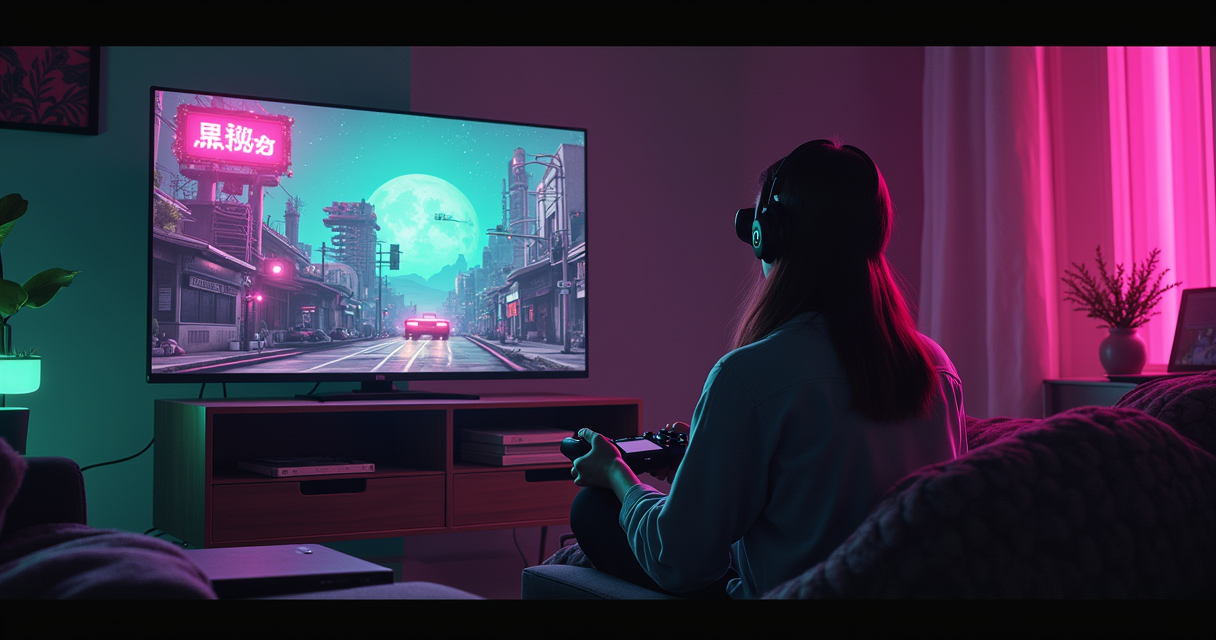
PS Remote Play is the rare Sony feature that costs nothing, ships on every PS4 and PS5, and works flawlessly — right up until your network decides otherwise. That last clause is the whole tutorial. The app is a five-minute install. The console toggle is one switch. Everything that separates a crisp, input-accurate 1080p stream from a smeary, half-second-behind slideshow lives in your router, your Wi-Fi band, and the plain physics of encoding a frame, shoving it across the internet, and decoding it on the far end.
This guide walks the entire path: prerequisites with real version numbers, a thirteen-step setup, the port numbers you should forward, the bitrate math nobody explains, and the open-source client — Chiaki-ng — you will want the moment Sony's own app runs out of knobs. It is written for the reader who wants the stream to actually work, not the one who wants to be told it is magic. Anyone promising you 2 ms of latency is selling you the ping time of an ICMP packet, not the time it takes a photon of Aloy's hair to reach your eyeball. We will get to that, because The Machine does not do marketing numbers.
What Remote Play Actually Is in 2026
Before you touch a single setting, understand what you are configuring. Half the bad advice online comes from people who never worked out which of Sony's three streaming features they were actually using.
The definition, and the part Sony leaves out
Sony's official Remote Play page describes it plainly: stream and play PS4 and PS5 games, switch between games, view the console's home screen, and browse its menus on a compatible device, all over a broadband network or high-speed internet connection. Wikipedia's Remote Play entry is even more clinical: it is a native console function that transmits video and audio from the console to a receiving device that also controls it. Both are correct. Both bury the lede. Remote Play is a thin client. Your phone, laptop, or Portal is a screen with a gamepad taped to it; the PlayStation in your living room is doing every scrap of the work — rendering the frame, encoding it, and listening for your inputs. Nothing about the game runs on the device in your hand. That single fact explains every behaviour you are about to fight with: if the stream looks bad, the console either could not encode it fast enough or could not push it through your network, and no amount of client-side wishful thinking changes that.
Remote Play vs. Cloud Streaming vs. Share Play
People conflate these three and then wonder why the advice does not apply. Remote Play streams your console — it must be powered on or in Rest Mode, and it is free. Cloud Streaming, which officially arrived on the PlayStation Portal on November 5, 2025, streams from Sony's data centres instead: it needs a PS Plus Premium subscription, offers a library of 2,800-plus streamable PS5 titles, and never touches your console at all. Share Play is a third thing entirely — a way to let a friend watch or join your session — and, relevant here, you cannot Share Play and Remote Play at the same time, nor cloud-stream and Remote Play simultaneously on the same device. When a guide tells you to "just use the cloud," understand that it is telling you to stop using your own console. This tutorial is about Remote Play; the cloud gets its own section near the end.
A short, unglamorous history
Remote Play is old. Sony shipped the idea in 2006, pairing the PS3 with the PSP, and it was a curiosity for years. The PS4 made it real; the PS5 inherited it at launch and gained proper support in November 2020. The Windows and Mac apps are not a 2025 novelty either — they have existed since the PS4 era, roughly 2016, no matter how many "new for 2026" headlines imply otherwise. The 2023 PlayStation Portal simply gave the feature a dedicated 8-inch, 1080p, 60 Hz body. Knowing the lineage matters because it tells you the protocol is mature and well-understood, which is precisely why the open-source community was able to reverse-engineer it into a client Sony never sanctioned. If you are weighing whether to lean on a console or a PC for this kind of thing at all, our look at how PC overtakes console on revenue by 2028 frames the wider platform argument.
Prerequisites: Hardware, Software, Network
Remote Play fails silently more often than it errors loudly, and the majority of those silent failures are prerequisites that were never met. Meet all of these before you blame the app.
On the console side
You need a PS5 — any model, disc or digital, standard or Pro — or a PS4, signed into your PlayStation Network account and set as your primary ("activated") console. Enable the feature itself under Settings > System > Remote Play > Enable Remote Play. Then, and this is the step everyone skips, configure Rest Mode: under Settings > System > Power Saving > Features Available in Rest Mode, switch on both Stay Connected to the Internet and Enable Turning On PS5 from Network. Without those two toggles, Remote Play only works while the console is fully awake and drawing full power; with them, you can wake it from your phone across town. Finally, wire the console to your router with Ethernet if a cable can possibly reach. The console is the uploader in this arrangement, and Wi-Fi jitter on the upload side is the single most common reason a stream looks like a fax. If you are on a PS5 Pro and hoping its extra GPU muscle sharpens the stream, it does not — Remote Play re-encodes a fixed output regardless. Our breakdown of what the PS5 Pro's 45% faster GPU actually buys covers why.
On the client side, with versions
On the receiving end you have options: a Windows 10 or 11 PC, or a Mac, running the official PS Remote Play app (install the latest build — older ones miss codecs, resolutions, and 3D audio); an Android 10-or-later phone or tablet; an iPhone or iPad; or the PlayStation Portal, which is PS5-only and will not stream a PS4. Controller support on Android is version-gated in a way that trips people up constantly, so here it is as a table, straight from the Google Play listing. On PC and Mac, plug in or Bluetooth-pair a DualSense or DualShock 4 and you are done.
| Controller | Client requirement |
|---|---|
| DualSense wireless controller | Android 12 or later |
| DualSense Edge wireless controller | Android 14 or later |
| Backbone One - PlayStation Edition | USB Type-C Android smartphones |
| DualSense / DualShock 4 (USB or Bluetooth) | Windows PC and Mac app |
The network floor, and why it is a floor not a promise
Sony's official guidance is blunt: a high-speed connection of at least 5 Mbps, and for best performance at least 15 Mbps. Read that as a floor. And read it in both directions — the console uploads video while the client downloads it, so your home upstream bandwidth (usually the stingy number on asymmetric cable and DSL plans) matters as much as the client's download. Fifteen megabits each way, wired where possible, with low latency and low jitter, is the real target. Meeting the 5 Mbps minimum gets you a connection; it does not get you a good one. That distinction is the entire difference between people who love Remote Play and people who gave up on it in twenty minutes.
How the Stream Actually Works
You do not need a networking degree, but you do need the mental model. Once you understand the pipeline, every symptom in the troubleshooting table stops being mysterious and starts being obvious.
The latency budget: encode, transmit, decode
Every frame takes the same journey. The console renders it, hands it to a hardware H.264/H.265 encoder, packetises the result, and fires it across the network; your client receives the packets, decodes them, and paints them on the screen — then your button press has to make the return trip. Each stage costs milliseconds. On a clean local network, glass-to-glass latency (controller press to pixels moving) typically lands around 25 to 40 milliseconds. That is genuinely good and perfectly playable for the overwhelming majority of games. It is also nowhere near the "2 ms" that certain 2026 setup guides advertise. Two milliseconds is the round-trip time of an ICMP ping packet on your LAN; it is not the time to encode, transmit, decode, and display a frame, and anyone quoting it as felt latency either does not understand the pipeline or is hoping you do not. Believe the physics, not the copy.
The ports nobody forwards, and should
On a single home network you rarely need to touch any of this. The trouble starts the moment you leave the house, because now the traffic has to traverse two NATs and your ISP's whims. Here is the full port map so you are not guessing.
# PS Remote Play / Chiaki-ng ports (forward these to the console)
TCP  9295        # registration + control (Senkusha handshake)
UDP  9296        # audio + video stream
UDP  9297        # controller feedback channel
UDP  9302        # console discovery (PS5)
UDP  987         # console discovery (PS4)

# PSN sign-in (authentication only)
TCP  80, 443, 3478, 3479, 3480
UDP  3478, 3479
Discovery uses UDP 9302 on a PS5 (UDP 987 on a PS4). Registration and control ride TCP 9295. The audio/video stream itself is UDP 9296, and your controller's feedback channel is UDP 9297. Sign-in to PSN — needed only to authenticate you — uses the usual TCP 80/443 plus the STUN-style 3478-3480 range. Memorise 9295 through 9302 and you know almost everything the protocol needs.
Resolution is a network decision, not a menu pick
The app will happily let you choose 360p, 540p, 720p, or 1080p, and it adapts downward on the fly the instant the pipe chokes. But selecting 1080p does not grant you 1080p; it sets a ceiling the encoder aims at and abandons the moment your bandwidth or jitter says no. A PS5 tops out at 1080p at 60 fps; a PS4 caps at 720p at 30 fps, full stop, and no update will ever change that hardware limit. So "why am I stuck at 720p" is almost never a settings problem and almost always a bandwidth-or-jitter problem. Treat the resolution picker as a request, not a command, and you will save yourself hours.
The 13-Step Setup Walkthrough
Thirteen steps, three phases, roughly twenty minutes if your firmware is current and your network is not fighting you. Each step has a rationale, because a step you understand is a step you can debug. Do them in order; the order isolates faults.
Console side (steps 1-5)
- Update the console firmware. The Remote Play handshake and codec support change across system-software revisions, and a stale console will negotiate a worse session or refuse a newer client outright. Settings > System > System Software > System Software Update and Settings.
- Sign in to PSN and set the console as your primary/activated device. Remote Play authenticates against your account, and a primary console is the one allowed to be woken remotely on your behalf. On a shared console, confirm it is activated for your account, not a housemate's.
- Enable Remote Play. Settings > System > Remote Play > Enable Remote Play. This is the master switch; with it off, nothing else in this guide matters, and the app will simply never find the console.
- Configure Rest Mode network features. Settings > System > Power Saving > Features Available in Rest Mode, then enable both Stay Connected to the Internet and Enable Turning On PS5 from Network. Without these, Remote Play only works while the console is fully powered on and cannot be woken from a phone.
- Wire the console to the router with Ethernet. The console uploads the encoded video, and upstream jitter is the number-one cause of artefacting and stutter. A cable removes an entire category of problems before you ever hit them; do this even if "the Wi-Fi is fine."
Client side (steps 6-10)
- Install the latest PS Remote Play app on your PC, Mac, phone, or set up your Portal. Older builds lack current codecs, the 1080p High Quality option, and 3D audio, and will quietly cap your experience. On Windows/Mac, grab it from Sony's official support page, not a mirror.
- Sign in with the same PSN account as the console. Remote Play pairs device to account; a second account or a family-member profile fails silently with no useful error. This single mismatch causes more "it just won't connect" threads than anything else.
- Pair the device with the console. On the same network the app auto-discovers the console. For manual pairing (needed across networks or for third-party clients), generate the code on the console at Settings > System > Remote Play > Link Device — an 8-digit PIN — and enter it in the client. This is how you connect when discovery broadcast cannot cross the network.
- Connect your controller to the client. DualSense over Bluetooth or USB on PC/Mac; on Android, check the version gates (DualSense needs Android 12+, DualSense Edge needs Android 14+). Input device support is version-locked, so a controller that "should work" may not on an older OS.
- Set the client's video ceiling. In the app's settings, choose your target resolution (1080p on a PS5) and frame rate (High / 60 fps). The default is often conservative; you are telling the encoder the maximum it may attempt when conditions allow.
First connection and tuning (steps 11-13)
- Run the first session on the same LAN. Connecting from within your own home first isolates account and pairing problems from internet problems. If it works locally and fails remotely, you have a network/NAT issue, not a setup issue — that knowledge is worth ten minutes of blind fiddling.
- Measure both connections. Speed-test the client's link and, crucially, the console's upstream. You are looking for at least 15 Mbps each way with low ping and low jitter. The console upload is the quiet bottleneck nobody checks; verify it explicitly.
- Prove the WAN path. For remote use, either forward the ports (TCP 9295, UDP 9296-9297/9302) or accept adaptive downscaling, then test from a mobile hotspot to confirm the connection survives leaving your home network. If a hotspot works, real-world remote use will too.
Network Tuning That Moves the Needle
Ninety per cent of Remote Play quality is network quality. These are the adjustments that actually change the outcome, ranked by how much they matter, not by how clever they sound.
Wire what you can, 5 GHz the rest
The console on Ethernet is non-negotiable if you care about the result; it is the highest-impact single change available to you. For the client, use 5 GHz or 6 GHz Wi-Fi and never 2.4 GHz — the 2.4 band is congested, low-bandwidth, and jittery, and it will cap you at 540p and input lag no matter how fast your internet plan claims to be. If the client can also take a cable (a PC, a Steam Deck in a dock), even better. Verify the actual link, not the theoretical one, before you assume the air is fine.
Port forwarding and the CGNAT wall
For off-network play, reserve a static DHCP lease for the console and forward the ports to it. Then confirm your ISP is not sitting behind carrier-grade NAT (CGNAT), which shares one public IP across many customers and silently defeats all inbound forwarding. The tell: your router's WAN IP does not match the public IP a "what is my IP" site reports, or your WAN IP sits in 100.64.0.0/10. If you are CGNAT'd, port forwarding cannot help; your escape routes are Cloud Streaming, a self-hosted VPN or Tailscale-style overlay, or asking your ISP for a real public IP.
# Windows (PowerShell, run as admin): open the media UDP ports
New-NetFirewallRule -DisplayName "PSRP-UDP" -Direction Inbound -Protocol UDP -LocalPort 9296-9297 -Action Allow

# Linux (ufw) - e.g. a Steam Deck running Chiaki-ng
sudo ufw allow 9295/tcp
sudo ufw allow 9296:9297/udp
sudo ufw allow 9302/udp
QoS, bufferbloat, and the upload nobody checks
Two invisible killers remain. First, bufferbloat: when any device saturates your link, latency balloons and your stream stutters even though "the speed test passed." The fix is Smart Queue Management (fq_codel or cake) in your router, which keeps latency flat under load. Second, prioritise the console in QoS so a background backup or someone else's 4K stream cannot starve it. Then actually measure — do not trust the marketing number on your plan.
$ speedtest-cli --simple
Ping:      8.42 ms
Download:  214.63 Mbit/s
Upload:    23.10 Mbit/s   # the CONSOLE upload is the real bottleneck

$ ping -c 4 ps5.lan
64 bytes from 192.168.1.24: icmp_seq=1 ttl=64 time=1.9 ms
64 bytes from 192.168.1.24: icmp_seq=2 ttl=64 time=2.1 ms
64 bytes from 192.168.1.24: icmp_seq=3 ttl=64 time=1.8 ms
# 2 ms is ICMP round-trip. Glass-to-glass is ~25-40 ms. Different numbers.
Resolution, Bitrate & 1080p High Quality
The resolution ladder and the March 2026 High Quality mode are where Sony's plain-English documentation and reality diverge slightly, so here is what the numbers actually mean.
The resolution ladder
Remote Play streams at 360p, 540p, 720p, or 1080p, choosing the highest tier your connection can sustain and dropping down the instant it cannot. Below is a practical map of the ladder. Note the honest caveat: Sony publishes only two numbers — 5 Mbps minimum and 15 Mbps recommended — so the per-tier bandwidth figures here are field estimates, not spec sheet values, and I have labelled them as such rather than inventing precision Sony never provided.
| Mode | Pixels | Rough downstream need (field estimate) | When to use it |
|---|---|---|---|
| 360p | 640x360 | ~2-4 Mbps | Mobile data, genuine last resort |
| 540p | 960x540 | ~4-7 Mbps | Weak hotel Wi-Fi and hotspots |
| 720p | 1280x720 | ~8-10 Mbps | PS4 ceiling; solid broadband on PS5 |
| 1080p Standard | 1920x1080 | ~10-15 Mbps | PS5 on good broadband |
| 1080p High Quality | 1920x1080 | 15 Mbps and up (higher bitrate) | PS5 on a strong LAN or fibre (Portal, Mar 2026+) |
1080p Standard vs. 1080p High Quality
The PlayStation Portal's March 17, 2026 software update added a 1080p High Quality mode for both Remote Play and Cloud Streaming. The key detail: it is the same 1920x1080 resolution as 1080p Standard, but at a higher bitrate, which Sony says delivers a smoother, higher-fidelity image. The trade is data. High Quality eats noticeably more bandwidth, so on a capped mobile plan or a marginal connection, Standard is the smarter pick. You enable it mid-session at Quick Menu > Max Resolution > 1080p High Quality, then restart the game session for it to take effect. Same pixels, fatter pipe, cleaner picture — that is the entire feature, and it is a genuinely worthwhile one on a wired-console setup.
Frame-rate caps and what does not carry over
A PS5 streams up to 1080p at 60 fps; a PS4 is hard-capped at 720p at 30 fps. Remember, too, that Remote Play re-encodes the console's output into a compressed H.264/H.265 stream — it does not pass your local picture through untouched. HDR and the PS5 Pro's PSSR upscaling (that is PSSR, not the mythical "PSSR2" some blogs invented) apply to the console's native output, but what you receive over Remote Play is a re-encoded 1080p-or-lower stream regardless. If you want to know where PSSR genuinely matters, see our coverage of the upgraded PSSR reaching 50 games; on a Remote Play stream, it is not the thing carrying your image.
Five Pitfalls That Wreck a Session
These are the failures I see over and over. Each is a specific mistake with a specific fix; read them now and you will pre-empt most of the misery.
Configuration pitfalls
- Rest Mode was never configured. The console sleeps and refuses to wake, and the app reports it as offline. Fix: enable both Stay Connected to the Internet and Enable Turning On PS5 from Network under Power Saving. This is the most common "it worked yesterday" cause — the console dropped to a deeper sleep state you never allowed it to leave.
- Wrong account or non-primary console. You are signed into the client on a different PSN account, or the console is not activated as your primary. Remote Play then fails with no meaningful message. Fix: confirm identical accounts on both ends and set the console as primary/activated.
Network pitfalls
- The console is on Wi-Fi. Upload jitter produces macroblocking, colour smear, and periodic freezes that look like a decoder bug but are not. Fix: run Ethernet to the console. If you truly cannot, at least force it onto a strong 5 GHz link and enable QoS.
- CGNAT or double NAT. Everything works at home and nothing works away, because inbound forwarding cannot reach a console hidden behind carrier-grade NAT. Fix: compare your WAN IP to your public IP; bridge your modem to kill double NAT, request a real IP from your ISP, or fall back to Cloud Streaming or a VPN overlay.
- A thin upstream on an asymmetric plan. Your 500-down cable line has 10-up, and the console cannot push clean 1080p through it, so it collapses to 720p or stutters. Fix: measure the upload at the console, drop the target resolution to match reality, and stop other upstream traffic during sessions.
Account and hygiene pitfalls
- A VPN, firewall, or greedy app is in the way. A client-side VPN breaks LAN discovery, an aggressive firewall silently eats the UDP media ports, and a background download starves the stream. Fix: disable the VPN for local pairing, allow UDP 9296-9297 through the firewall, and pause big transfers. Small hygiene, large payoff.
Troubleshooting Table
When it breaks, work the table. It is ordered roughly from most-common to least, and every row maps a symptom to its likeliest cause and the fix that actually addresses it rather than the folk remedy that does not.
Symptom, cause, fix
| Symptom | Likely cause | Fix |
|---|---|---|
| App can't find the console on the same Wi-Fi | Discovery packets blocked or client on a different subnet/VLAN | Put both on one network; allow UDP 9302 (PS5) / 987 (PS4); disable router "AP isolation" |
| Console won't wake from Rest Mode remotely | Rest Mode network features disabled | Enable "Stay Connected to the Internet" and "Enable Turning On PS5 from Network" |
| Connects, then drops after a few seconds | UDP path / NAT timeout / bufferbloat | Forward UDP 9296-9297; enable SQM/cake QoS; try a wired client |
| Stuck at 720p on a fast connection | Thin console upload (asymmetric plan) or console on Wi-Fi | Wire the console; check upstream speed; cut other network load |
| Input lag but clean video | Feedback channel congestion / client on 2.4 GHz | Move client to 5/6 GHz; prioritise console traffic in QoS |
| Black or green screen, audio only | Hardware decoder / GPU driver issue | Update GPU drivers; toggle hardware decoding off then on in the client |
| Registration or sign-in fails (88001010-class error) | Wrong PSN account or device clock skew | Use the same account as the console; set device date/time to automatic |
| No 1080p option at all | Outdated app, or you are on a PS4 | Update the app; remember PS4 Remote Play caps at 720p/30 |
| Controller does nothing on Android | OS below the required version | DualSense needs Android 12+; DualSense Edge needs Android 14+ |
| Works at home, never away | CGNAT / double NAT on the ISP | Compare WAN vs public IP; bridge the modem, use a VPN, or switch to Cloud Streaming |
| Stutter only during downloads/uploads | Bufferbloat under load | Enable Smart Queue Management (fq_codel/cake); cap the stream bitrate |
Reading the error codes
Sony's Remote Play error codes are terse and rarely actionable on their own, but the pattern helps. Codes in the 88001xxx family are almost always authentication or account issues — same account, correct primary console, correct clock. Connection codes that appear only off-network point at NAT and ports. Codes that appear mid-session point at bandwidth or jitter. Do not chase a specific number down a forum rabbit hole before you have checked the obvious account/network split.
When to blame the console, not the network
If you have wired the console, confirmed the account, and proven the network with a hotspot test, and it still misbehaves, the console's own software may be the culprit — a corrupted database or cache can break networking features in odd ways. Our 13-step PS5 cache clear in Safe Mode is the correct next move before you assume the hardware is at fault. Rebuild the database, then retry.
Advanced: Chiaki-ng, the Client Sony Didn't Write
When the official app runs out of settings — no manual bitrate, no fine decoder control, no native build for your handheld — the community has an answer. This is the advanced-tips section, and it is the part The Machine actually enjoys.
What it is, and what it is not
Chiaki-ng is an open-source Remote Play client, the maintained next-generation fork of the original Chiaki (written by thestr4ng3r), now developed by streetpea under the name chiaki-ng (formerly chiaki4deck). The current release is v1.10.0, dated April 3, 2026, and it runs across Linux, FreeBSD, OpenBSD, Android, macOS, Windows, and even the Nintendo Switch. Its documentation lives at streetpea.github.io/chiaki-ng. Read the important caveat plainly: it is explicitly not endorsed or certified by Sony. It is a reverse-engineered client that speaks the same protocol. That is legal to use against your own console, but it is unsupported, and if a future firmware breaks it, you wait for a community patch. The payoff is control the official app never gives you — and native performance on hardware Sony ignores. If you are running it on a handheld, our ROG Ally vs. Steam Deck comparison covers which one makes the better Chiaki box.
Registration by Account-ID and PIN
The one genuine gotcha is registration. Chiaki-ng does not want your PSN Online-ID (the name your friends see); it wants your numeric Account-ID in Base64 form, which you extract with one of the community helper scripts, plus an 8-digit PIN generated on the console at Settings > System > Remote Play > Link Device. Get the Account-ID format wrong and registration fails with a cryptic error, so this trips up nearly everyone once.
# chiaki-ng: click the + button, then Register Console
Console type:     PS5
PSN Account-ID:   aBcD1234EfGh==     # Base64 form, NOT your online ID
PIN:              01234567           # PS5: Settings > System >
                                     #   Remote Play > Link Device
Broadcast:        on                 # same LAN for the first pairing

# expected result on success
[I] Registration succeeded
[I] Registered console (nickname: LivingRoom)
[I] Host saved to chiaki-ng settings
Recommended config
For a PS5 on a clean local network, these are the settings worth setting. The GUI writes the config for you; the values below are the ones that matter. Hardware decoding is the difference between smooth playback and a CPU-pegged slideshow, so leave it on and pick the backend for your OS.
# Recommended chiaki-ng settings for a PS5 on a clean LAN
# (the GUI writes these for you; shown here for reference)
Resolution ............. 1080p
FPS .................... 60
Bitrate ................ 30000   # Kbps; set for headroom, or leave on Auto
Hardware decoder ....... enabled (vaapi / videotoolbox / d3d11va)
Audio buffer ........... 9600
Controller ............. DualSense (Bluetooth or USB)
Console link ........... wired Ethernet; client on 5 GHz / 6 GHz
The Portal, Cloud Streaming & 3D Audio
Sony's dedicated hardware and its cloud service both touch Remote Play in ways worth understanding, because the two big 2025-2026 updates changed what the Portal is good for.
What the Portal adds and refuses
The PlayStation Portal is an 8-inch, 1080p, 60 Hz LCD wrapped in DualSense-style controls, released in 2023. It is Wi-Fi only and PS5-only: it will not stream a PS4 or PS3, and it has no HDMI out. For a long time it was a one-trick device — a wireless screen for your own console — and nothing more. That changed with the November 2025 and March 2026 updates, which turned it into a legitimate two-mode streaming handheld. If your only client is a Portal, know its refusals up front so you are not surprised by them.
Cloud Streaming vs. Remote Play on the same box
Sony's November 5, 2025 launch post brought Cloud Streaming to the Portal and redesigned its home screen around three tabs: Remote Play, Cloud Streaming, and Search. Remote Play streams your console; Cloud Streaming (PS Plus Premium, 2,800-plus PS5 titles) streams from Sony's servers and needs no console at all. The practical upshot: if your home upload is weak, Cloud Streaming can actually look better than Remote Play, because Sony's data-centre upstream is not your sad 10-Mbps cable uplink. Choose the tab that suits your bottleneck.
3D audio and game invites
That same November 2025 update added 3D Audio during both Remote Play and Cloud Streaming for supported games when you use a compatible audio device — a real quality-of-life gain for headphone players. The March 2026 update layered on Game Invite notifications, so invitations to supported titles now appear on-screen mid-stream without dumping you out of the session, alongside the 1080p High Quality mode covered earlier and improved trophy and bundle-detail screens. None of it changes the fundamentals, but together it makes the Portal feel far less like a beta than it did at launch.
A Complete, Working Configuration
Here is the whole thing in one place — the configuration I would hand someone who wanted a known-good setup and no theory. Console, router, and both client options. Copy the shape of it; adjust the IP to your own network.
The console and router side
The console is wired, awake-able from the network, and pinned to a fixed address so your port-forward rules never break. The router forwards the four ports that matter and keeps latency flat under load. This is 80 per cent of the battle, done once.
CONSOLE  (PS5)
  Settings > System > Remote Play > Enable Remote Play ........ ON
  Settings > System > Power Saving > Features in Rest Mode:
     Stay Connected to the Internet ......................... ON
     Enable Turning On PS5 from Network ..................... ON
  Network: wired Ethernet, reserved DHCP lease (e.g. 192.168.1.24)

ROUTER
  Port-forward to 192.168.1.24:
     TCP 9295 , UDP 9296-9297 , UDP 9302
  QoS: prioritise the console; enable SQM/cake to kill bufferbloat
The client side, official app
On the receiving device, set the ceiling high and let the encoder aim for it. On a strong link, choose 1080p High Quality where the client offers it; on mobile data, drop to Standard or 720p to protect your data cap and stability.
CLIENT  (official PS Remote Play app)
  Settings > Video Quality for Remote Play
     Resolution .... 1080p  (1080p High Quality where offered)
     Frame Rate .... High (60 fps)
  Connection: 5 GHz / 6 GHz Wi-Fi, or Ethernet
The Chiaki-ng side, optional
If you have gone open-source for a Steam Deck or a Linux box, this is the matching profile — a fixed bitrate for headroom and hardware decoding on. Registered once with your Account-ID and a Link Device PIN, it reconnects instantly thereafter.
CLIENT  (Chiaki-ng, optional)
  1080p , 60 fps , 30000 Kbps , hardware decode ON
  Registered via Account-ID (Base64) + 8-digit Link Device PIN
The Verdict: When It's Worth It
Remote Play is not a graphics feature. It is a networking exercise with a PlayStation attached, and once you accept that framing, it stops disappointing you.
Where it shines
As a second screen in the same house, over Ethernet or strong 5 GHz, it is excellent — near-instant, clean 1080p, and free. On the road with genuinely good hotel or office Wi-Fi it is a quiet miracle: your console, in your pocket, on a Portal or a phone with a Backbone. And on a handheld running Chiaki-ng, it turns a Steam Deck into a PS5 client Sony never intended, with more control than the official app allows. For single-player and slower-paced games especially, the 25-40 ms of real latency simply does not register.
Where it does not
Twitch-reflex competitive shooters over a mediocre WAN link will feel the latency, and no setting fixes the speed of light plus an encode-decode round trip. CGNAT prisons and thin upstreams defeat it before you start. And anyone who told you it runs at 2 ms or preserves your console's native HDR path was wrong on both counts. Manage the expectation and you will not be let down.
The bottom line
Wire the console, forward TCP 9295 and UDP 9296-9297/9302, put the client on 5 GHz, and Remote Play is genuinely, reliably good — one of the best free features on either PlayStation. Neglect the network and it is a slideshow, and that is on your router, not on Sony. Everything above is just the difference between those two outcomes. Do the setup properly once, and you will never think about it again.
Questions the search bar asks me
- Is PS Remote Play free, and do I need PlayStation Plus?
- Remote Play itself is free and built into every PS4 and PS5; no PS Plus tier is required to stream your own console. You only need PS Plus Premium for Cloud Streaming, the separate feature that runs games from Sony's servers (2,800-plus PS5 titles) instead of your console.
- What internet speed does Remote Play need?
- Sony recommends a high-speed connection of at least 5 Mbps as a floor and 15 Mbps for best performance, in both directions. The console's upload bandwidth usually matters most, since it is the end sending the video; wiring the console to Ethernet is the single highest-impact change you can make.
- Can I actually get 1080p at 60fps?
- On a PS5, yes — Remote Play tops out at 1080p/60. A PS4 is hard-capped at 720p/30 and no update changes that. Sony added a 1080p High Quality mode (same resolution, higher bitrate, more data) in the March 17, 2026 PlayStation Portal update, selectable via Quick Menu > Max Resolution after restarting the session.
- Does Remote Play work away from home or on mobile data?
- Yes; it runs over any broadband or mobile-data connection. The usual blocker is carrier-grade NAT (CGNAT) or a thin home upload, which stop off-network connections. Forwarding TCP 9295 and UDP 9296-9297/9302 to the console, or falling back to Cloud Streaming, are the standard fixes.
- What is Chiaki-ng, and is it safe to use?
- Chiaki-ng (v1.10.0, April 2026) is an open-source Remote Play client — the maintained fork of Chiaki by streetpea — that runs on Linux, Windows, macOS, Steam Deck, and more. It is explicitly not endorsed by Sony, but it connects to your own console using your PSN Account-ID and an 8-digit Link Device PIN, so it is legitimate for personal use.

Jordan covers the modern industry where it touches the old one: Nintendo announcements, handheld hardware, and the long shadow the classics cast over new releases. Every post under this byline is reviewed pre-publish by Sam P., Editor & Operator — corrections to info@instalinkoteam.com. Published 2026-08-29 · Last updated 2026-08-29. Full bios on the author page.