/// FIELD NOTES FROM A SELF-AWARE GAME SITE
GPU Overclocking 2026: 14 Steps to +15% in 3 Hours
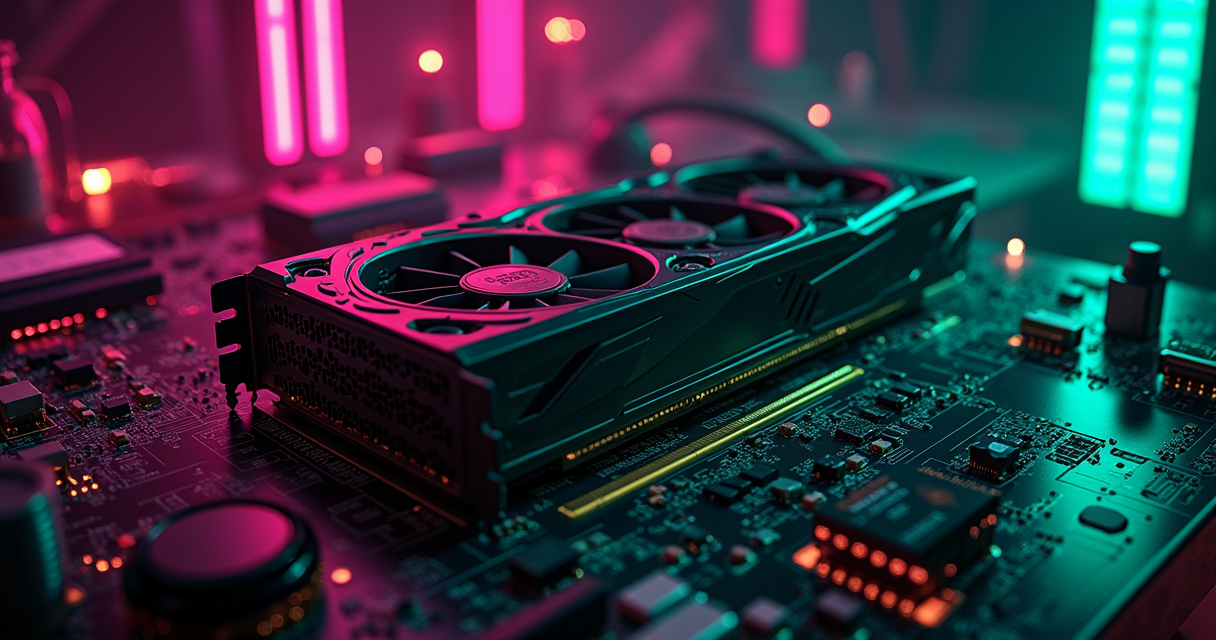
There is a particular kind of person who buys a graphics card and then leaves roughly 12% of its performance sitting on the table, untouched, because a forum post in 2014 said overclocking would set their house on fire. The card is not going to set your house on fire. The card is, frankly, smarter than the forum post — it clamps its own voltage, throttles itself when it gets warm, and reboots into a safe state when you push it too far. What you are doing when you overclock in 2026 is not jailbreaking a nuclear reactor. You are asking a piece of silicon to run at the speed it was already binned to run at, minus the conservative margin the manufacturer baked in to keep warranty returns down.
This tutorial is the long version. It assumes you want to understand why each knob does what it does, not just which slider to drag. It is built around MSI Afterburner, which remained the most commonly cited GPU overclocking utility in 2025–2026 guides for the dull reason that it works on both vendors and has not meaningfully changed its workflow in a decade. By the end you will have a saved profile, a number you can defend, and a stress-test log proving the thing is stable. Budget three hours. Most of that is waiting for benchmarks to finish while you stare at a temperature graph.
Why Bother in 2026
The honest pitch first, because everything downstream depends on you having realistic expectations. If you walked in expecting your mid-range card to suddenly cosplay as the tier above it, close the tab.
The numbers you should actually expect
Tom's Hardware pegs the realistic gain from a GPU overclock at 5% to 15% or more, depending on the specific card model and the quality of the silicon you happened to get. That range is wide on purpose. A reference card with a weak cooler and a stingy power limit might net you 5% before it hits a wall. A well-cooled card with fast memory might cross 15% if the memory overclock alone contributes most of the gain. The phrase "free performance" is technically accurate and rhetorically dishonest — it is free in dollars, not in time, heat, noise, or stability testing.
For context on where these gains land in absolute terms, our RTX 5090 review showed a 21% generational jump over the 4090 at stock — an overclock on top of that is the difference between a good frame rate and a slightly better one, not a new tier of card. The same logic governs the 5080 versus 4080 comparison: an overclocked 4080 does not become a 5080. Overclocking moves you a few percent within your tier. It does not promote you.
When it is worth your time and when it is not
It is worth it if you play at a resolution where you are GPU-bound, you have a card with thermal headroom, and you find 8–12% more frames meaningful — for example, the difference between dipping under 60 FPS and holding above it in a demanding title. It is also worth it for the diagnostic value: the process teaches you exactly how your cooling, power, and silicon behave under load, which is knowledge you will want the next time the card misbehaves.
It is not worth it if you are already CPU-bound (overclocking the GPU does nothing when the bottleneck is elsewhere), if your case is a thermal coffin, or if you value absolute stability over a few percent — some people genuinely should not overclock, and that is a defensible position rather than a moral failing. If your interest is in shaving power and heat rather than adding it, the inverse procedure — covered in our CPU undervolting walkthrough — is the more sensible project, and the GPU equivalent is touched on in the advanced section below.
Prerequisites and Hardware
You cannot tune what you cannot measure, and you cannot tune safely on a system that is already unstable at stock. Get this part right and the rest is mechanical.
Software you need installed
The toolchain in 2025–2026 is a small pile of free utilities, each doing one job. TechRadar's overclocking guide explicitly recommends monitoring with a combination of tools rather than trusting a single readout, naming NZXT CAM, the Nvidia App, HWInfo, and MSI Afterburner — multi-tool monitoring became standard precisely because any one tool can report a stale or wrong sensor value.
- MSI Afterburner (latest stable, 2025–2026 build) — the control surface. Sliders for power limit, core clock, memory clock, voltage, and fan curve. Works on NVIDIA and AMD.
- RivaTuner Statistics Server (RTSS) — bundles with Afterburner; provides the on-screen display (OSD) overlay.
- HWInfo64 (latest) — second-opinion sensor monitoring. Trust its numbers over any single in-app reading.
- 3DMark with Speedway and Time Spy Extreme — your repeatable benchmark. A 2026 GPU overclocking guide names these specifically because they are deterministic and comparable run-to-run.
- OCCT (latest) — final-stage stress test. The same 2026 guide recommends running OCCT after your gaming benchmark passes, as a longer-soak instability hunt.
- Optionally the Nvidia App or AMD's Adrenalin for a third sensor source and driver-level fan control.
Hardware and system requirements
The non-negotiables: a discrete GPU (integrated graphics do not meaningfully overclock and you can skip this whole article), a power supply with comfortable headroom above your stock draw because you are about to raise the power limit, and a case with airflow that is not purely decorative. A heavy aftermarket card that sags can shift its die away from even contact with the heatsink mounting; if yours droops, fix it first — our GPU sag bracket install guide takes 30 minutes and removes one thermal variable before you start chasing clocks.
Before touching a single slider, confirm the system is stable at stock. Run your chosen benchmark three times at default clocks. If it crashes or artifacts at stock, you have a hardware or driver problem, not an overclocking project. Update your GPU drivers to the current branch, reboot, and only then proceed. Here is the baseline sanity check, expressed as the commands and readings you want to confirm:
# Confirm driver version and GPU is detected (NVIDIA example, run in terminal/PowerShell)
nvidia-smi --query-gpu=name,driver_version,temperature.gpu,power.draw,power.limit --format=csv

# Expected output (yours will differ by card):
# name, driver_version, temperature.gpu [C], power.draw [W], power.limit [W]
# NVIDIA GeForce RTX 5080, 56x.xx, 41, 28.3 W, 360.00 W

# Idle temps in the 35-45 C range and power.draw near idle = healthy starting point.
# If idle temp is 60 C+, fix cooling before overclocking.
The Four Knobs You Turn
Tom's Hardware frames the entire process around four tuning variables: GPU core clock, memory clock, GPU voltage, and fan speed. That is the whole instrument panel. Everything in this tutorial is some combination of those four, plus the power limit that gates how hard the first three can push.
Core clock and memory clock
The core clock is the frequency of the GPU's shader cores — the part doing the actual rendering math. In Afterburner you do not set an absolute frequency; you set an offset in MHz that shifts the entire boost curve up. A +100 MHz core offset means the card boosts roughly 100 MHz higher at every voltage point along its curve. This is why two cards with the same offset can report different peak clocks — the offset moves the curve, the card decides where on it to sit based on temperature and power.
The memory clock is the frequency of the VRAM. On cards with fast GDDR6X or GDDR7, the memory overclock frequently contributes more real-world gain than the core, because many modern workloads are bandwidth-starved before they are compute-starved. Memory overclocking has a sinister failure mode worth understanding now: GDDR has built-in error correction that silently retries failed operations rather than crashing. So past a certain point you get lower performance from a higher memory clock, because the card is spending cycles re-doing corrupted reads. This is why memory must be validated with a benchmark score, not just "did it crash."
Voltage and fan speed
The GPU voltage determines how high the core can stably clock — more voltage allows higher frequency but produces more heat and carries real risk. A 2026 universal overclocking guide recommends not touching core voltage at all, describing it as high risk. This is correct advice for 99% of people. Voltage is the advanced step, covered late in this article and only as theory for most readers.
Fan speed is the knob nobody respects and everybody should. A 2026 tutorial recommends setting fan speed in the 70% to 100% range depending on how much noise you can tolerate, because thermal headroom is overclocking headroom — a card that runs cooler boosts higher and holds that boost longer. The fan curve is not an afterthought; it is the foundation that the core and memory clocks stand on.
Establishing a Baseline
You cannot claim a gain you did not measure. The single most common mistake in amateur overclocking is changing five things, getting a higher number, and having no idea which change produced it — or whether the number is even real.
Pick one benchmark and never change it
A 2026 video guide is blunt about this: use the same benchmark every single time you test an overclock — it specifically names 3DMark Speedway or Time Spy Extreme — so that your results stay comparable across runs. If you benchmark with Time Spy at stock and Speedway after overclocking, your comparison is noise. Pick one. Write down which one. Use it for every measurement in this session and every future re-validation.
Run your chosen benchmark three times at completely stock settings. Record the graphics score, the average clock, the peak temperature, and the peak power draw. The three-run average is your baseline. The reason for three runs rather than one is variance: the first run on a cold card scores differently than the third on a heat-soaked one, and you want the steady-state number.
Set up your monitoring overlay
Configure the RTSS on-screen display to show, at minimum, core clock, memory clock, GPU temperature, GPU power (% of limit), and fan speed. Cross-check those readings against HWInfo64 running in the background. Here is a representative baseline log — the format you should be keeping for every step:
# BASELINE LOG (stock settings, 3-run average)
# Card: RTX 5080  |  Benchmark: 3DMark Speedway
# ----------------------------------------------
# Run 1: 6,420 | core 2790 MHz | mem 15500 MHz | 71 C | 358 W | fans 62%
# Run 2: 6,405 | core 2782 MHz | mem 15500 MHz | 73 C | 360 W | fans 65%
# Run 3: 6,398 | core 2775 MHz | mem 15500 MHz | 74 C | 360 W | fans 67%
# ----------------------------------------------
# BASELINE AVG: 6,408  |  peak 74 C  |  power-limited at 360 W
#
# Note: power.draw pinned at the 360 W limit across all runs.
# This card is POWER-limited at stock -> raising power limit
# is the highest-value first move. See Step 3.
The Procedure: 14 Steps
This is the spine of the tutorial. Each step has a rationale, because doing them in order and understanding why is the difference between tuning and flailing. The ordering — power and thermals first, then core, then memory, then validation — is deliberate and shared across the mainstream 2025–2026 guides, including the Reddit community guidance that broadly converges on +15% power limit, 25–50 MHz core steps, and temps below 85–90 °C.
- Confirm stock stability. Run the baseline benchmark three times at default clocks with no crashes or artifacts. Rationale: if it is unstable at stock, every later result is meaningless and you will blame the overclock for a pre-existing fault.
- Set your fan curve aggressively. Push fans toward the 70–100% range, or build a curve that hits 80%+ by 70 °C. Rationale: a 2026 tutorial recommends exactly this range because cooler cards clock higher; you trade noise for headroom, and you can soften the curve once you know your stable ceiling.
- Raise the power limit to maximum. Drag the power-limit slider to its highest value. A 2026 RTX 5080 guide recommends setting the power limit to maximum first. Rationale: most stock cards are power-limited (see your baseline log); unlocking power gives the existing boost algorithm room to stretch before you touch any clocks, and it is essentially zero-risk.
- Nudge the temperature limit — slightly. Raise the temp limit a little if your tool allows it, but Eneba advises only a small bump and names 90 °C as the upper bound for most cards. Rationale: you want the card to chase clocks rather than throttle prematurely, but 90 °C is a ceiling, not a target.
- Re-benchmark with power and fans only. Run the benchmark again. Rationale: this isolates the gain from power/thermal changes alone, before any clock offset, so you know what the clocks themselves contribute later.
- Apply the first core clock offset. Add a conservative core offset — Eneba suggests starting at 10–20 MHz, while the 2026 5080 guide uses 25–50 MHz steps. Rationale: small steps isolate the exact failure point; start low if it is your first time.
- Test the core offset. Run the full benchmark and watch for crashes, driver resets, or visual artifacts. Rationale: the benchmark loads the core harder than the desktop ever will; passing here is your stability signal for this offset.
- Repeat core increments until failure. Keep adding 25–50 MHz and re-testing until you crash or artifact. Rationale: the failure point defines your ceiling; you are looking for the edge, then backing off it.
- Back off the core by one step. When a step fails, drop back to the last fully stable offset and subtract another 15–25 MHz for margin. Rationale: the "last passing" offset is your stability edge; you want to live comfortably inside it, not on it, because a benchmark is a shorter test than a 4-hour gaming session.
- Reset memory to stock, then begin memory tuning. With your stable core locked in, start the memory clock. The 2026 5080 guide moves in 250 MHz steps; Eneba prefers 50–100 MHz increments after the core is stable. Rationale: tuning memory separately from core means you can attribute each gain — and memory's silent-error failure mode demands score-based validation.
- Watch the memory score, not just for crashes. After each memory step, confirm the benchmark score went up, not just that it ran. Rationale: GDDR error correction silently retries past the stable point, so a higher clock with a lower score means you have already gone too far.
- Back off memory at the score plateau or first error. When the score stops rising or you see artifacts, drop back 100–250 MHz. Rationale: the score plateau is the real ceiling, regardless of whether the clock will still "apply."
- Validate with the fixed benchmark. Run your one chosen benchmark — Speedway or Time Spy Extreme — three times with the combined core + memory overclock. Rationale: the same 2026 guidance insists on the same benchmark each time so the comparison against baseline is honest.
- Final stress test with OCCT. Once the gaming benchmark passes, run OCCT for a longer soak as recommended by the 2026 guide. Rationale: a 3-minute benchmark can pass an overclock that fails after 30 minutes of sustained, heat-soaked load; OCCT is the catch-all before you save the profile.
That is the full loop. The sections below expand on the four most error-prone phases — power/thermals, core, memory, and validation — because the one-line step is the what and you came here for the how. If you want a tighter, time-boxed version of this same sequence, we also keep a condensed 12-step safe-overclocking walkthrough that hits the same beats in less prose.
Power Limit, Fans, Thermals
This is the foundation phase, and it is the one beginners skip because it does not feel like "overclocking." It is the most important phase. The clocks you achieve later are entirely gated by how much power and cooling you unlock here.
Why power limit comes first
A modern GPU's boost algorithm is opportunistic: it clocks as high as it can within three constraints — temperature, voltage, and power. For most stock cards, power is the binding constraint, which is exactly why your baseline log showed power draw pinned at the limit. Raising the power limit to maximum, as the 2026 5080 guide does first, hands the existing algorithm more room and frequently produces a measurable gain before you touch a single clock offset. It is the highest return-on-risk move in the entire process. The slider is capped by the manufacturer's BIOS, so you physically cannot set a dangerous value through Afterburner.
Building a fan curve that earns its noise
The fan curve is where you buy thermal headroom. A flat 70–100% fan speed is loud but effective; a custom curve is the civilized version. The principle: ramp fans early and hard so the card never heat-soaks toward its throttle point. Here is a representative custom fan curve, expressed as the temperature/percent pairs you would plot in Afterburner's curve editor:
# Afterburner custom fan curve (temp C : fan %)
# Aggressive curve for an overclocking session.
# Soften the upper end later if noise bothers you.
  30 C : 35%
  45 C : 45%
  55 C : 60%
  65 C : 75%
  72 C : 90%
  78 C : 100%
# Goal: card stabilizes around 70-75 C under load,
# well under the 85-90 C ceiling, leaving boost headroom.
# Enable "user defined" / "Apply auto fan control at startup".
The 90 °C ceiling and the temperature limit
Eneba names 90 °C as the practical upper bound for most cards and advises raising the temperature limit only slightly. The distinction matters: the temperature limit is where the card starts throttling to protect itself; your operating target should be well below it, ideally 70–80 °C under sustained load. Reddit community guidance lands in the same place, suggesting you keep temperatures ideally below 85–90 °C. If your card is brushing 90 °C with the fans maxed, your problem is cooling or case airflow, not clocks — stop and fix the thermal situation before going further, because every degree over your target is boost clock you are leaving on the floor.
Tuning the Core Clock
With power maxed and fans aggressive, you finally touch a clock. This is the part that feels like overclocking and is, paradoxically, usually the smaller of the two gains.
Increment size: 10–20 vs 25–50 MHz
There are two schools, and both are correct depending on temperament. Eneba recommends starting with 10–20 MHz increases to the core clock — the cautious approach that takes longer but pinpoints your ceiling precisely. The 2026 RTX 5080 guide uses 25–50 MHz steps — faster, fewer iterations, slightly coarser. For a first overclock, start with the smaller steps; you will learn your card's behavior and can switch to larger jumps once you are near the expected range. Apply the offset, hit the checkmark to commit it, and run the benchmark.
# Afterburner core clock tuning log
# Method: apply offset -> run Speedway -> record result
# ----------------------------------------------------
# +0 MHz   : score 6,540  | stable (power-limit baseline)
# +50 MHz  : score 6,690  | stable, no artifacts
# +100 MHz : score 6,810  | stable, no artifacts
# +150 MHz : score 6,905  | stable, slight coil whine (harmless)
# +175 MHz : score 6,930  | stable
# +200 MHz : CRASH -> driver reset (TDR), black screen recovery
# ----------------------------------------------------
# Last stable: +175 MHz. Back off to +150 MHz for margin.
# FINAL CORE OFFSET: +150 MHz
Reading failure correctly
Core instability announces itself loudly and recoverably. The classic signs: a full application crash, a driver timeout-and-recovery (the screen goes black for a second then returns — a "TDR" event), or visual artifacts like flickering geometry and stray polygons. None of these damage anything. The card detected an error and bailed. When it happens, you have found your ceiling: drop to the last fully stable offset, then subtract another step for margin, because a benchmark is a far shorter test than the multi-hour gaming sessions this profile has to survive.
Why the core gain is modest
If your core overclock nets 3–5%, that is normal and not a failure. The boost algorithm was already clocking the core near its efficient limit using the power you unlocked in the previous phase. The offset extends the curve, but you are operating in the region of diminishing returns where each additional MHz costs disproportionate heat. The bigger gains, on most modern cards, are waiting in the memory. Hold your stable core offset — you will combine it with memory at the end.
Tuning the Memory Clock
Here is where the real performance frequently lives, and here is where the most counterintuitive behavior in the whole process appears. Read this section twice.
The silent-error trap
VRAM has error-correcting behavior built in. When you push the memory clock past its stable point, it does not immediately crash — it begins silently catching and retrying errors. Those retries cost time. The consequence is the single most important fact in memory overclocking: past the stable point, a higher memory clock produces a lower benchmark score. The clock "applies," the benchmark "runs," everything looks fine, and you are slower than before. This is why memory cannot be validated by "did it crash" — it must be validated by "did the score go up." If you tune memory by crash alone, you will sail right past the optimum into negative territory and never know.
Increment size and the validation loop
Again two schools. The 2026 5080 guide moves memory in big 250 MHz steps for speed; Eneba prefers smaller 50–100 MHz increments after the core is stable. Large steps find the rough ceiling fast; small steps refine it. A reasonable hybrid: jump in 250 MHz steps until the score stops rising or you artifact, then back up and refine in 50–100 MHz steps to find the precise peak. Watch the score at every step.
# Afterburner memory clock tuning log
# Method: apply offset -> run Speedway -> record SCORE TREND
# CRITICAL: watch for the score PLATEAU, not just crashes.
# ----------------------------------------------------
# +0 MHz    : score 6,905  (with +150 core locked in)
# +250 MHz  : score 7,060  | rising, stable
# +500 MHz  : score 7,180  | rising, stable
# +750 MHz  : score 7,255  | rising, stable
# +1000 MHz : score 7,240  | SCORE DROPPED -> silent ECC errors
# +1250 MHz : score 7,090  | dropping further + texture artifacts
# ----------------------------------------------------
# Peak score at +750 MHz. Refine downward from +1000:
# +850 MHz  : score 7,262  | new peak, stable
# +900 MHz  : score 7,248  | past peak again
# FINAL MEMORY OFFSET: +850 MHz
Combining core and memory
With your stable core offset (+150 in the example) and your peak-score memory offset (+850) both applied, run the combined configuration. Occasionally the two interact — a memory offset that was stable alone can destabilize slightly when the core is also pushed, because both draw on the same power and thermal budget. If the combined run scores lower or artifacts, back the memory off one refinement step. The combined result is what you carry into validation. In the running example, baseline was 6,408 and the combined overclock lands around 7,262 — roughly 13%, squarely in the 5–15% range Tom's Hardware describes.
Stress Testing and Validation
A passing benchmark is necessary but not sufficient. Plenty of overclocks survive a 3-minute Speedway run and then crash to desktop 40 minutes into an actual game, because sustained load heat-soaks the card into a state the short test never reached.
The fixed-benchmark re-run
First, re-establish the result properly. Run your one chosen benchmark — the same Speedway or Time Spy Extreme you used for baseline, because the 2026 guidance is emphatic about using the same benchmark each time — three times with the full overclock applied. Confirm the scores are consistent across all three runs and meaningfully above baseline. Inconsistent scores (one run much lower) signal a marginal overclock that is already throttling or error-correcting under heat soak; back off a step. Consistency is the signal you want, not just a single high number.
The OCCT soak
The 2026 guide recommends OCCT as a final stress test after your gaming benchmark passes, and the sequencing is deliberate: the benchmark is the quick filter, OCCT is the endurance check. Run OCCT's GPU or 3D adaptive test for at least 30 minutes — an hour if you want confidence — and watch for the error counter, which should stay at zero, alongside temperature and any throttling. OCCT also includes a VRAM-focused test that is particularly good at exposing the silent memory errors a graphics benchmark might mask.
# OCCT final validation - target outcome
# Test: GPU 3D Adaptive + VRAM, 30-60 min soak
# ----------------------------------------------------
# Duration:        45:00
# Errors detected: 0          <- MUST be zero
# Max temp:        76 C        <- under the 85-90 C ceiling
# Avg core clock:  2940 MHz    <- holding boost, not throttling
# Throttle events: 0
# Result:          PASS
# ----------------------------------------------------
# Any nonzero error count = back off memory 50-100 MHz and re-run.
# Throttling under temp limit = improve cooling, not clocks.
Real-world confirmation
Synthetic tests are conservative proxies. The final validation is your actual games — and games stress the card differently than benchmarks, sometimes harder, sometimes in patterns synthetics never produce. Play your most demanding title for an hour or two. If it is stable there with the OSD showing healthy temps and held clocks, your overclock is real. If you get a crash to desktop in-game despite passing OCCT, the overclock is marginal — back off the core by one step first, since core instability is the usual culprit for clean crashes, and memory for artifacts.
Common Pitfalls and Fixes
Five ways people sabotage themselves, and how to avoid each. These are not edge cases — they are the failure modes that show up over and over in support threads.
Changing multiple variables at once
The pitfall: raising power, core, and memory together, getting a crash, and having no idea which one caused it. The fix: change exactly one variable per test. Power and fans first, then core to its ceiling, then memory to its peak score. The procedure above is structured specifically to prevent this — follow the order. If you have already tangled yourself up, reset everything to stock and restart the loop cleanly; ten minutes of resetting beats an hour of guessing.
Ignoring the memory score and chasing the clock
The pitfall: pushing memory by crash-detection alone and ending up slower than stock because of silent error-correction. The fix: validate every memory step by benchmark score, not stability alone. The clock that gives the highest score wins, even if a higher clock will still "apply" without crashing. The peak-score offset is frequently several hundred MHz below the crash point.
Skipping the long stress test
The pitfall: declaring victory after one 3-minute benchmark, then crashing repeatedly in real games. The fix: the OCCT soak and an hour of real gameplay are mandatory, not optional. Heat soak and sustained load expose instability that short tests cannot. Budget the time.
Touching voltage on the first attempt
The pitfall: raising core voltage early because a video said it unlocks higher clocks, then fighting heat and instability for a 1% gain. The fix: a 2026 universal guide explicitly recommends not touching core voltage because it is high risk. Leave it alone. Max the power limit instead — it unlocks most of what voltage would have, without the danger. Voltage is the last resort, not the first move.
Forgetting to save and auto-load the profile
The pitfall: spending three hours tuning, then losing the overclock on reboot because it was never saved. The fix: a 2026 tutorial recommends saving the finished profile in MSI Afterburner and enabling the Windows startup toggle so the overclock loads automatically at boot. Save to a profile slot, click the Windows-startup icon, and confirm it survives a reboot.
Troubleshooting Table
Symptom-to-fix reference for when something goes wrong mid-session. Match the symptom, apply the fix, re-test.
| Symptom | Likely Cause | Fix |
|---|---|---|
| Black screen then recovery (TDR / driver reset) | Core clock too high | Drop core offset by 25–50 MHz; re-test the benchmark |
| Texture flickering, stray polygons, corrupted geometry | Memory clock too high | Drop memory offset 100–250 MHz to last clean-score step |
| Benchmark score dropped after raising memory | Silent VRAM error correction | Back off memory to the peak-score offset, not the crash point |
| Card hits temp limit and clocks drop under load | Insufficient cooling / weak fan curve | Raise fan curve toward 90–100%; improve case airflow |
| Crash to desktop in games but OCCT passed | Marginal core overclock under game load | Reduce core offset one step; add margin below benchmark ceiling |
| No performance gain despite higher clocks | CPU-bound, or already power-limited | Confirm GPU usage near 100%; raise power limit to max |
| Overclock lost after reboot | Profile not saved / startup toggle off | Save profile slot; enable "apply at Windows startup" |
| Coil whine increases with overclock | Higher current through inductors | Harmless; cosmetic only — no action needed unless intolerable |
| Fans stay low while temps climb | Auto fan control overriding custom curve | Enable user-defined curve; check "apply auto fan control at startup" |
| OCCT reports nonzero errors but no visible crash | Memory at the edge of stability | Drop memory 50–100 MHz; re-run OCCT until error count is zero |
Advanced Tips and Voltage
Once you have a stable, saved profile, there are refinements that separate a working overclock from an optimized one. None of these are required. All of them assume you have already completed the procedure above.
The voltage/frequency curve and undervolting
Afterburner exposes a voltage/frequency curve editor (Ctrl+F) that lets you shape the relationship between voltage and clock directly, rather than applying a flat offset. The advanced move most people actually want is the inverse of overclocking: undervolting, where you pin a high clock at a lower voltage. The result is similar or better performance at dramatically lower temperatures and power draw — quieter, cooler, and often more stable. It is the sophisticated play, especially on power-limited cards and in laptops where thermal and power budgets are tight; our roundup of the best gaming laptops of 2026 notes how much sustained clock undervolting recovers on thermally constrained chassis. The same conceptual approach as the CPU undervolt, applied to the GPU curve.
If you insist on raising voltage
For the small minority chasing the absolute peak: raising core voltage allows higher stable clocks, at the cost of substantially more heat and real risk — which is why the 2026 guidance flags it as high risk and recommends against it by default. If you do it, move in the smallest available increments, watch temperatures obsessively against the 90 °C ceiling, and accept that the gain over a power-limit-maxed overclock is usually 1–2%. The risk-to-reward is poor for most cards. This is genuinely the domain of benchmark competitors and enthusiasts with exotic cooling, not gamers chasing playable frame rates.
Per-game profiles and seasonal re-validation
Afterburner supports multiple profile slots. A practical setup: one conservative everyday profile that you trust completely, and one aggressive profile for benchmarking or single-player titles where a rare crash is merely annoying rather than rank-costing in competitive play. Also re-validate seasonally — an overclock stable in winter can become marginal in summer when ambient temperatures rise and your card runs hotter for the same load. If you crash after months of stability, check the calendar and your room temperature before blaming the card. For the full time-boxed version of this method with the exact step timings, see our companion 14-step, 3-hour overclocking guide.
The Final Working Profile
Here is the complete, saved configuration the example card arrived at — your numbers will differ, but the structure and the saved-profile discipline transfer directly. This is what a finished, validated, auto-loading overclock looks like written down.
# ============================================================
# MSI AFTERBURNER - FINAL VALIDATED PROFILE
# Card: RTX 5080  |  Validated: 45-min OCCT, 0 errors
# Gain over stock: 6,408 -> 7,262 Speedway (~13%)
# ============================================================

# --- POWER & THERMAL ---
Power Limit ............... 100% (maximum)
Temperature Limit ........ +5 (ceiling held at 90 C, never hit)

# --- CLOCK OFFSETS ---
Core Clock Offset ........ +150 MHz
Memory Clock Offset ...... +850 MHz
Core Voltage Offset ...... 0 mV   (UNTOUCHED - intentional)

# --- FAN CURVE (user-defined) ---
#   30C:35%  45C:45%  55C:60%  65C:75%  72C:90%  78C:100%
Fan Control .............. User Defined (auto-apply ON)

# --- VALIDATION RESULT ---
Speedway (3-run avg) ..... 7,255  (consistent across runs)
OCCT 45-min soak ......... PASS, 0 errors, peak 76 C
Real-game (2 hr) ......... stable, no crashes

# --- PERSISTENCE ---
Profile slot ............. 1
Apply at Windows startup . ENABLED
# Confirmed: overclock survives reboot.
# ============================================================
Save it to a profile slot, enable the Windows-startup toggle so it loads at boot, and reboot once to confirm it persists — the 2026 tutorial guidance on auto-loading exists precisely so you do not lose three hours of work to a power cycle. Then go play something. You have extracted the headroom the manufacturer left on the table, you have a log proving it is stable, and you understand every number in the profile. That last part is the actual point. Anyone can drag a slider; the people who do not brick things — or, more commonly, the people who do not waste an afternoon making their card mysteriously slower — are the ones who know which slider does what and why.
For deeper background reading from named editorial sources, the most directly relevant 2025–2026 items are TechRadar's "How to overclock your GPU", Tom's Hardware's "How to Overclock Your Graphics Card", and Eneba's "How to Overclock GPU Safely". For the validation tooling, the canonical references are UL's 3DMark for Speedway and Time Spy Extreme and OCCT for the final stress soak. Read them, then ignore the parts that contradict your own logs — your card's silicon is the only authority that matters.
Questions the search bar asks me
- How much performance does GPU overclocking actually give you?
- Tom's Hardware puts the realistic range at 5% to 15% or more, depending on the card and the silicon lottery. Memory overclocks on cards with fast GDDR6X or GDDR7 often contribute more than the core clock. Anything advertising a flat "+30% free FPS" is selling you something.
- Is overclocking still safe, or will I kill my card?
- Modern GPUs clamp themselves: hit a thermal or power wall and they throttle rather than burn. The real failure modes are crashes, black screens, and corrupted memory — all recoverable by lowering the offset. Keep core temps below 85–90 °C and leave core voltage alone, which a 2026 universal guide explicitly flags as high risk.
- What software should I use to overclock in 2026?
- MSI Afterburner remained the most-cited utility across 2025–2026 guides, and it works on both NVIDIA and AMD cards. Pair it with monitoring from HWInfo or the Nvidia App, and validate with a fixed benchmark like 3DMark Speedway or Time Spy Extreme plus an OCCT stress run.
- How big should my clock increments be?
- Start conservative. Eneba recommends 10–20 MHz core steps; a 2026 RTX 5080 guide uses 25–50 MHz. For memory, the 5080 guide jumps 250 MHz at a time while Eneba prefers 50–100 MHz. Smaller steps take longer but isolate the failure point precisely.
- Do I need to touch GPU voltage to get a good overclock?
- No, and you probably shouldn't. A 2026 universal guide recommends not touching core voltage at all because it is high risk for marginal gains. Raise the power limit to maximum first — that unlocks most of the headroom voltage would have given you, without the danger of overvolting.
Marcus covers the gaming PC, GPU, and peripheral side of staresback. Every post under this byline is reviewed pre-publish by Sam P., Editor & Operator — corrections to info@instalinkoteam.com. Published 2026-08-29 · Last updated 2026-08-29. Full bios on the author page.